Export OpenEXR Files
To export as OpenEXR, follow the instructions below:
- Go to File > Export.
The Export window displays.
-
Select an export type from the Export drop-down menu.
- Select an export preset from the Preset drop-down menu, as applicable.
- Adjust additional export settings, as applicable.
- Select OpenEXR from the File Format drop-down.
- Click Setup....
The OpenEXR settings window displays.
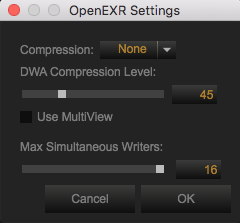
Figure: OpenEXR Settings
- Select the desired settings and click OK.
- For the Export Pipeline, select one of the following from the Export Pipeline drop-down:
- Primary Raw Development - Export un-graded RWG/Log3G310
- Full Graded IPP2 Mode
NOTE: Primary RAW Development - Export un-graded RWG/Log3G310 and Full Graded IPP2 Mode are only available for IPP2 clips.
- ACES
NOTE: ACES is only available for OPENEXR files.
- Click Export.
The file dialog box displays.