Display Effective ISO
NOTE: RED recommends that you follow standard exposure best practices and select your ISO value based on the native ISO.
When using any ND filter, including the MOTION MOUNT, the effective ISO is reduced because the ND filter reduces light transmission to the sensor. To display the effective ISO (on the main screen) and native camera sensor ISO (in the ISO/FLUT® screen), follow the instructions below:
- Go to Menu > Settings > Display > Modes > Lens (in later firmware versions, go to Menu > Overlays > Status > Lens).
- Set MOTION MOUNT ISO Pull to On.
- On: Displays the effective ISO.
- Off: Displays actual ISO.
- Select Close to return to the main screen.
The effective ISO displays in yellow.
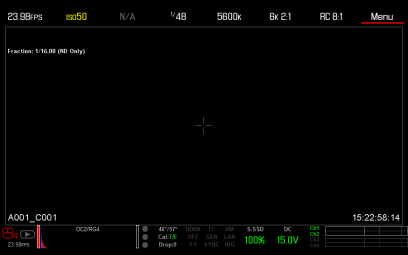
Figure: Effective ISO Displays in Yellow When MOTION MOUNT ISO Pull Is Enabled
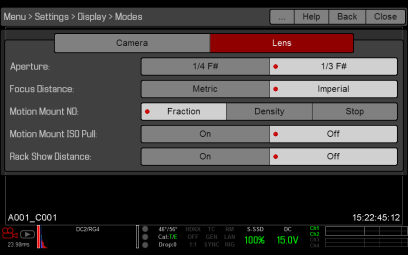
Figure: Enable MOTION MOUNT ISO Pull
- Go to Menu > Settings > Look > ISO/FLUT (in later firmware versions, go to Menu > Image > ISO), or select ISO in the Upper Status Row (Basic Menu).
- Select an ISO value on the slider.
NOTE: Remember, changing the effective ISO changes the native ISO of the camera and NOT the ND value.
- To view or change the native ISO, press and hold the ISO value to access the Advanced ISO menu. The native ISO is the first value.
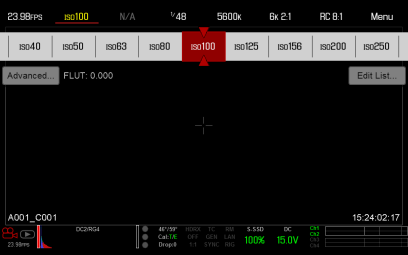
Figure: Select ISO Setting
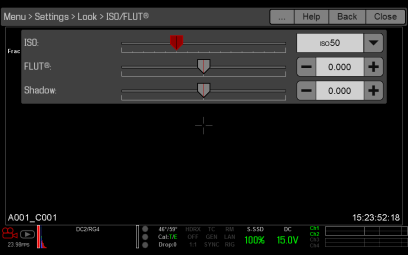
Figure: View Native ISO