Display Neutral Density (ND) Settings
NOTE: Using a high ND with wide apertures may cause asymmetrical bokeh. If you select an ND value over 4.00 stops with “ND Only” selected, the ND value on the main screen overlay turns yellow. A warning message also displays in the MOTION MOUNT menu. For more information, go to Out-of-Focus Field Modification.
You can configure how the ND settings display in the graphical user interface (GUI).
- Go to Menu > Settings > Display > Modes > Lens (in later firmware versions, go to Menu > Overlays > Status > Lens).
- Select one of the following MOTION MOUNT ND display settings:
- Fraction: Displays the neutral density value as a fraction of light transmission.
- Density: Displays the neutral density value as an optical density value.
- Stop: Displays the neutral density value as a stop loss.
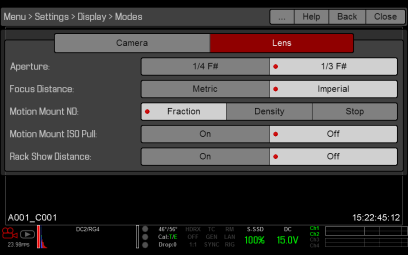
Figure: Select MOTION MOUNT ND Setting
- Select Close to exit.
The ND value displays in the top left corner of the Live Action Area on the GUI.
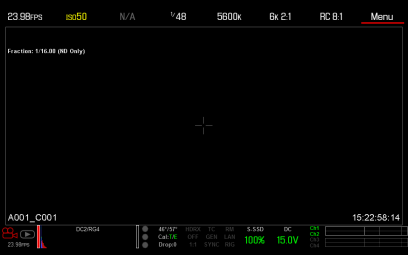
Figure: ND Value Displays in the Top Left Corner