Install RED ROCKET-X and HD-SDI Slot Filler
WARNING: The computer system that you are installing the RED ROCKET-X in works with voltages that can be hazardous to your health.
Follow the instructions below to install the RED ROCKET-X and HD-SDI slot filler (optional) in a Mac Pro system:
-
Ensure that the computer is turned off.
-
Wait 5 to 10 minutes to ensure that the system components cool down.
-
Touch the metal on the outside of the computer to discharge any static electricity from your body.
NOTE: To avoid generating static electricity while installing the RED ROCKET-X, DO NOT walk around the room until you have completed the installation and closed the computer.
-
Unplug the power cable and all external cables from the computer.
WARNING: Never work on the system or access its interior while any power cables are plugged in.
-
Hold the side access panel and lift the latch on the back of the computer.
-
Remove the side access panel.

Figure: Remove Panel
-
Remove all hard drives except the one in the first bay (the one farthest to the left).
-
Loosen the two (2) thumbscrews that secure the PCI bracket to the enclosure and remove the PCI bracket.
-
Remove any cards that are not in slot 1 from the system.
-
Press the button on the PCI slider and move the PCIe fan to the side to create more room for installing the RED ROCKET-X (slide the PCIe fan back into place after you install the RED ROCKET-X).

Figure: Slide PCIe Fan Away
-
Connect your power cable(s) to the Mac Pro based on your configuration needs:
-
If the graphics card is connected to one Mac Pro power connector and the other power connecter is unused, connect a 6-pin PCIe power cable (either a PCIe 6-pin to 6-pin power cable or the included PCIe 6-pin to 6-pin Dual Y Power Splitter) to power connector B on the backplane board (this is the upper power connector that is closer to the optical drive). Connect the 6-pin PCIe power cable to the RED ROCKET-X in Step 17.
-
If both Mac Pro power connectors are in use, disconnect the graphics card from the power connector and connect the PCIe 6-pin to 6-pin Dual Y Power Splitter (included) to power connector B on the backplane board (this is the upper power connector that is closer to the optical drive). Connect the PCIe 6-pin to 6-pin Dual Y Power Splitter to the graphics card and the RED ROCKET-X in Step 17-18.
NOTE: For more information on different ways to connect power, go to Power Supply.
-
-
Feed the 6-pin PCIe power cable outside of the computer so that it is not in your way when you install the RED ROCKET-X.
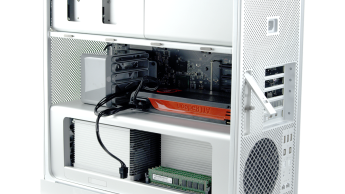
Figure: Connect Power
-
Angle the RED ROCKET-X so that the end with the DisplayPort connections is angled toward the upper right corner.
-
Insert the RED ROCKET-X into the system so that the metal bracket at the end with the DisplayPort connections clears the top.
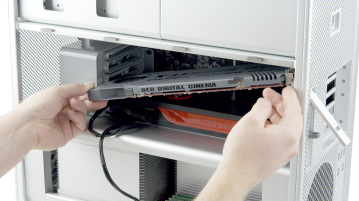
Figure: Angle RED ROCKET-X
-
Straighten the RED ROCKET-X.
-
Line up the RED ROCKET-X connectors with slot 2, and then gently but firmly press the card into the slot, ensuring that the lip at the end slides between slot 2 and slot 3.

Figure: Insert RED ROCKET-X
NOTE: To prevent damage to your system and the RED ROCKET-X, DO NOT rock the card or use excessive force when installing the RED ROCKET-X.
-
Plug your 6-pin PCIe power cable (either a PCIe 6-pin to 6-pin power cable or the included PCIe 6-pin to 6-pin Dual Y Power Splitter) into the RED ROCKET-X. Make sure that the latch of the power cable aligns with the corresponding slot on the RED ROCKET-X.
WARNING: If you use the PCIe 6-pin to 6-pin Dual Y Power Splitter (included) to connect only the RED ROCKET-X or graphics card, ensure that the unused connector does not come in contact with a fan or any moving parts.
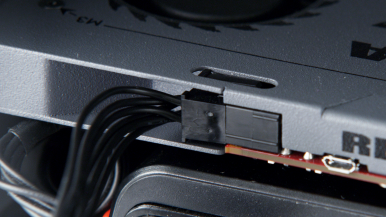
Figure: Connect Power to RED ROCKET-X
-
If you are using the PCIe 6-pin to 6-pin Dual Y Power Splitter (included) to connect both the graphics card and the RED ROCKET-X to a single power connector in the Mac Pro, plug the second connector on the PCIe 6-pin to 6-pin Dual Y Power Splitter (included) into the graphics card. For more information on different ways to connect power, go to Power Supply.
-
If you are using the HD-SDI slot filler, follow the instructions below to install and connect the HD-SDI slot filler:
For more information, go to Supported HD-SDI Signals.
-
Remove one (1) free slot bracket from the system.
-
Slide the HD-SDI slot filler into the empty slot so that the SDI Out B connector is toward the back.
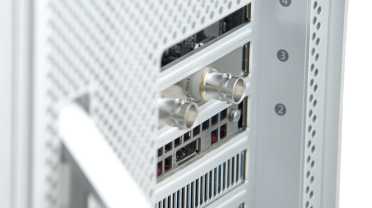
Figure: Install HD-SDI Slot Filler
CAUTION: Ensure that the HD-SDI slot filler or connectors DO NOT contact other components inside the computer.
-
Connect the SDI Out A cable on the HD-SDI slot filler to the SDI Out A connector on the RED ROCKET-X. The SDI Out A connector is the right connector when the RED ROCKET-X is installed.
-
Connect the SDI Out B cable on the HD-SDI slot filler to the SDI Out B connector on the RED ROCKET-X. The SDI Out B connector is the left connector when the RED ROCKET-X is installed.
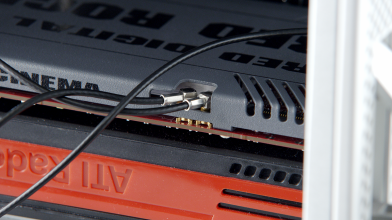
Figure: Connect HD-SDI Slot Filler to RED ROCKET-X
-
-
Place the PCI bracket under the brace and tighten the two (2) thumbscrews to secure the RED ROCKET-X.
NOTE: The photo below shows the system without the HD-SDI slot filler installed.
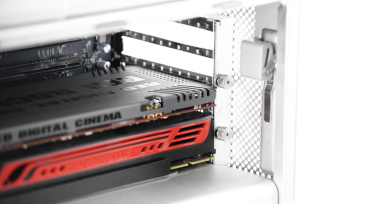
Figure: Install PCI Bracket
-
Reinstall any cards that you removed from the system.
-
Reinstall any hard drives that you removed from the system.
-
Slide the PCIe fan toward the RED ROCKET-X until it locks back into place.
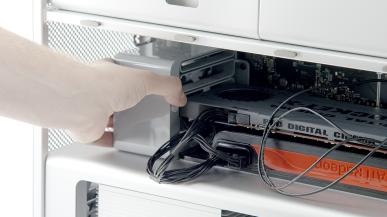
Figure: Slide PCIe Fan to Original Position
-
Reinstall the side access panel.
-
Reconnect all cables to the computer system.
-
To install or upgrade the RED ROCKET-X driver and firmware, go to Install RED ROCKET-X Software.