Playback
When you press the button below PLAY on the Home Page, the LCD displays the Playback screen.
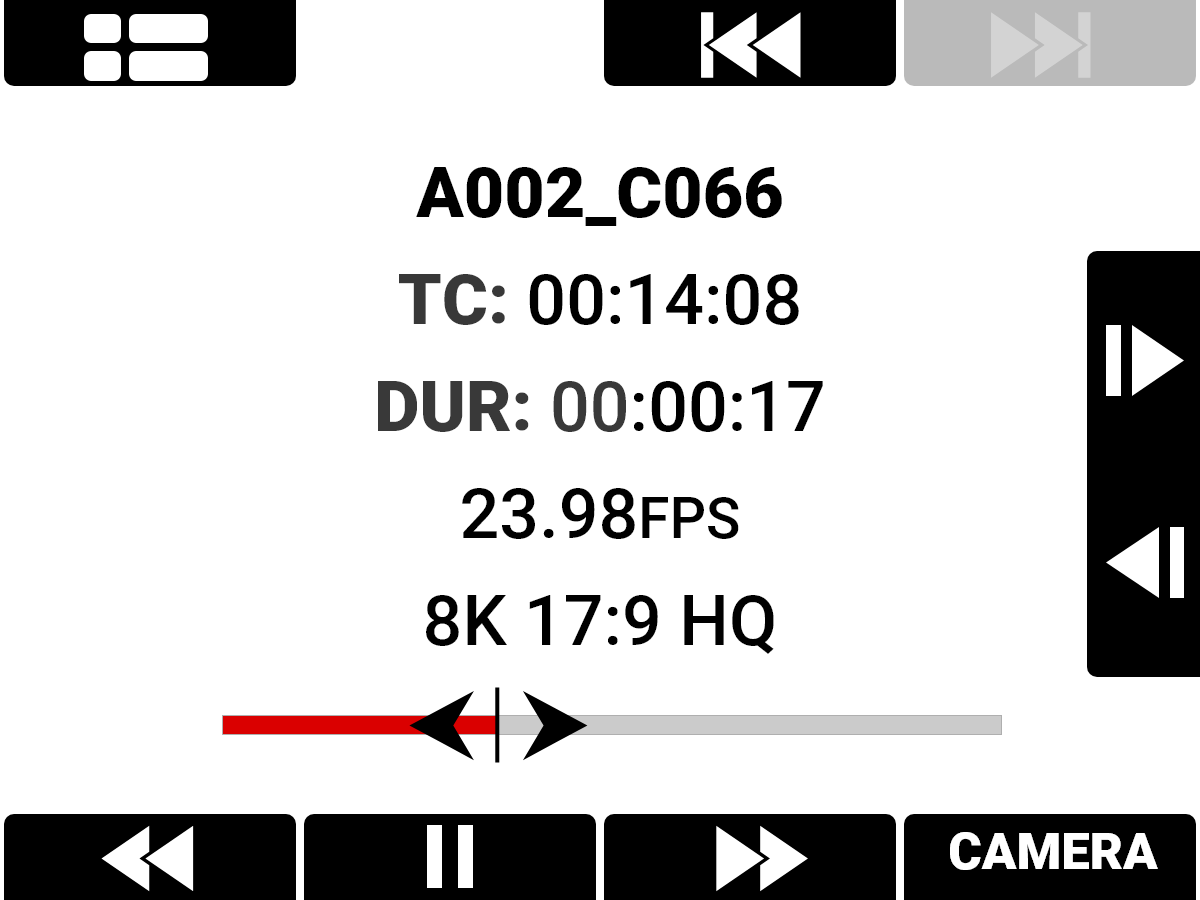
To close the Playback screen, press the button below CAMERA.
Playback Screen
The Playback screen displays the following:
Clip Information
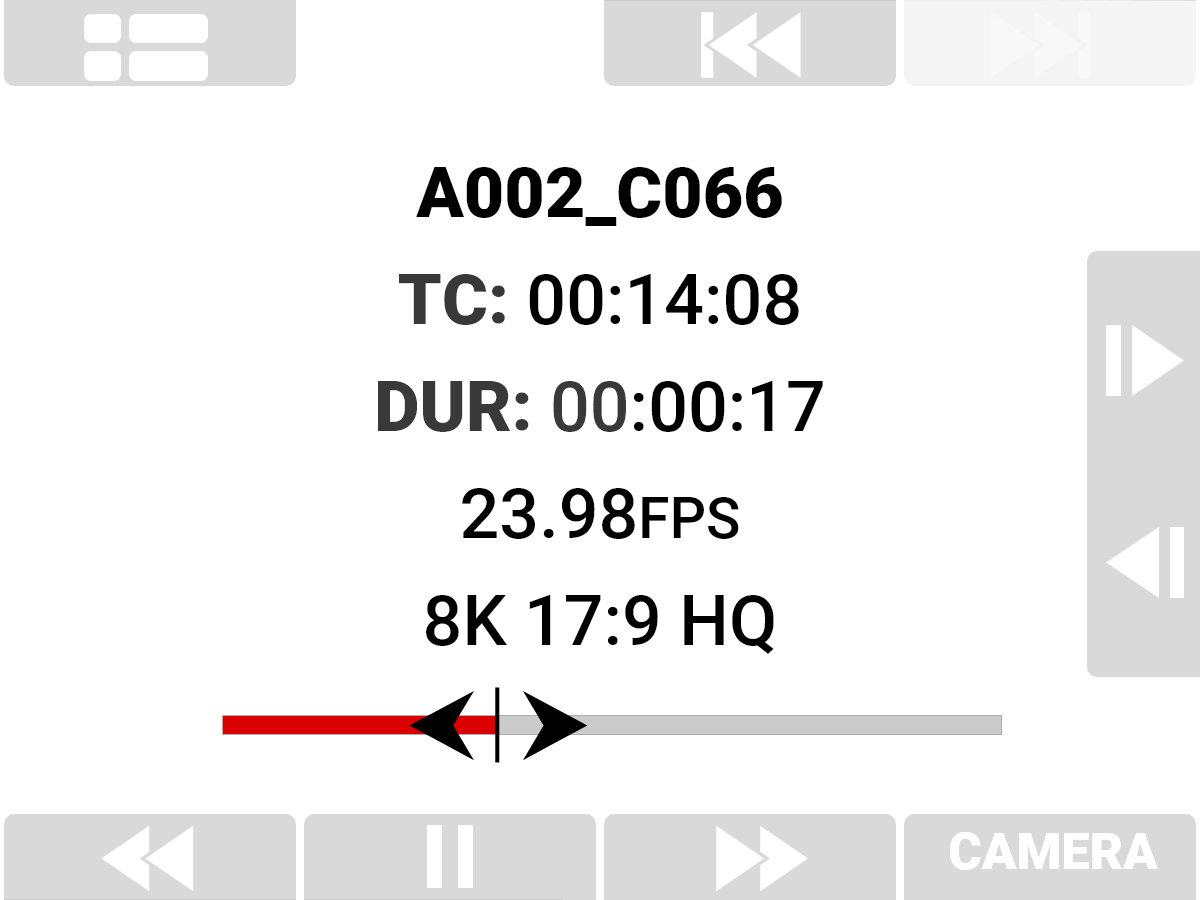
The Clip Information displays the name, Timecode, duration, project time base, format, and timeline of the clip.
Playback Screen Buttons
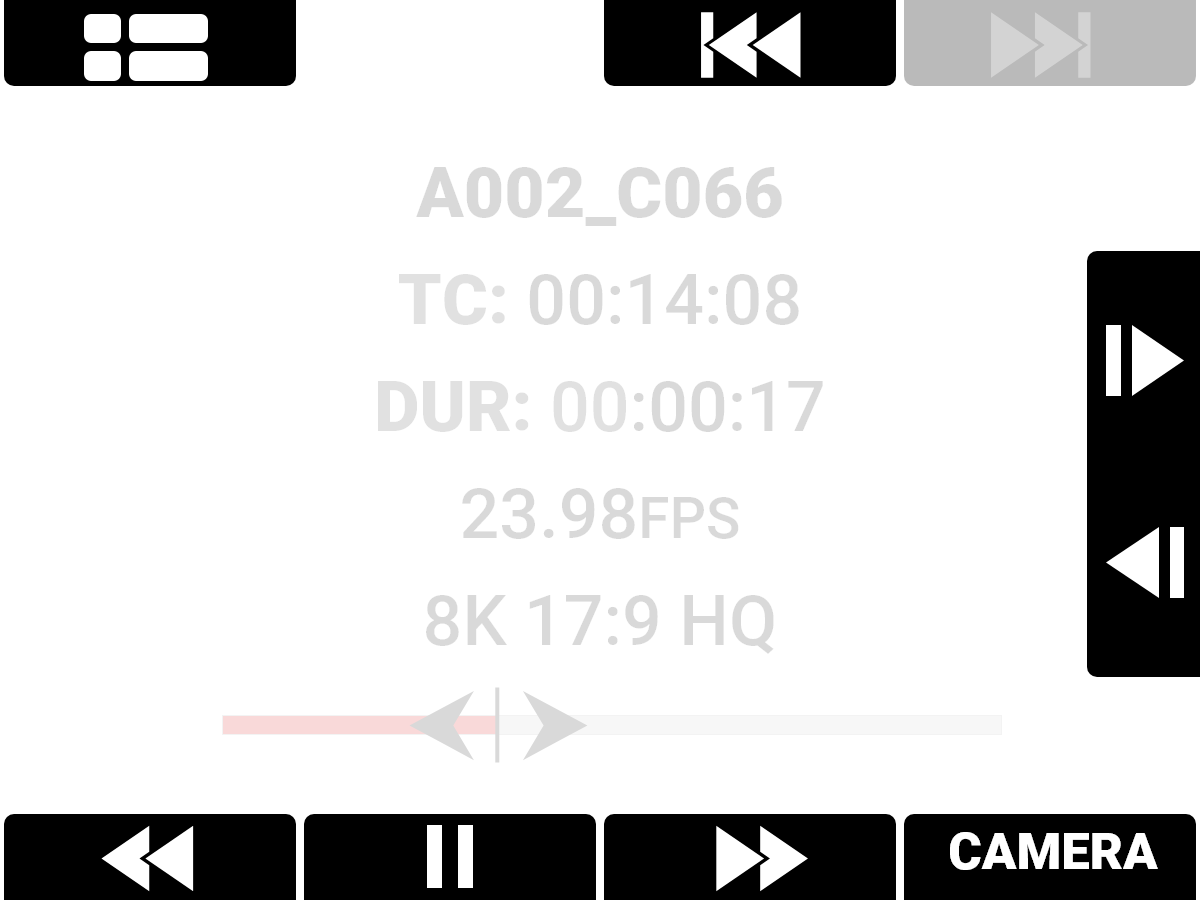
With the Playback screen buttons you can view the Clip list, move to the start of the clip, fast reverse, play/pause, fast forward, and move forward and reverse by a single frame.
Clip List

Press the button over the Clip List to open the Clip Load list.
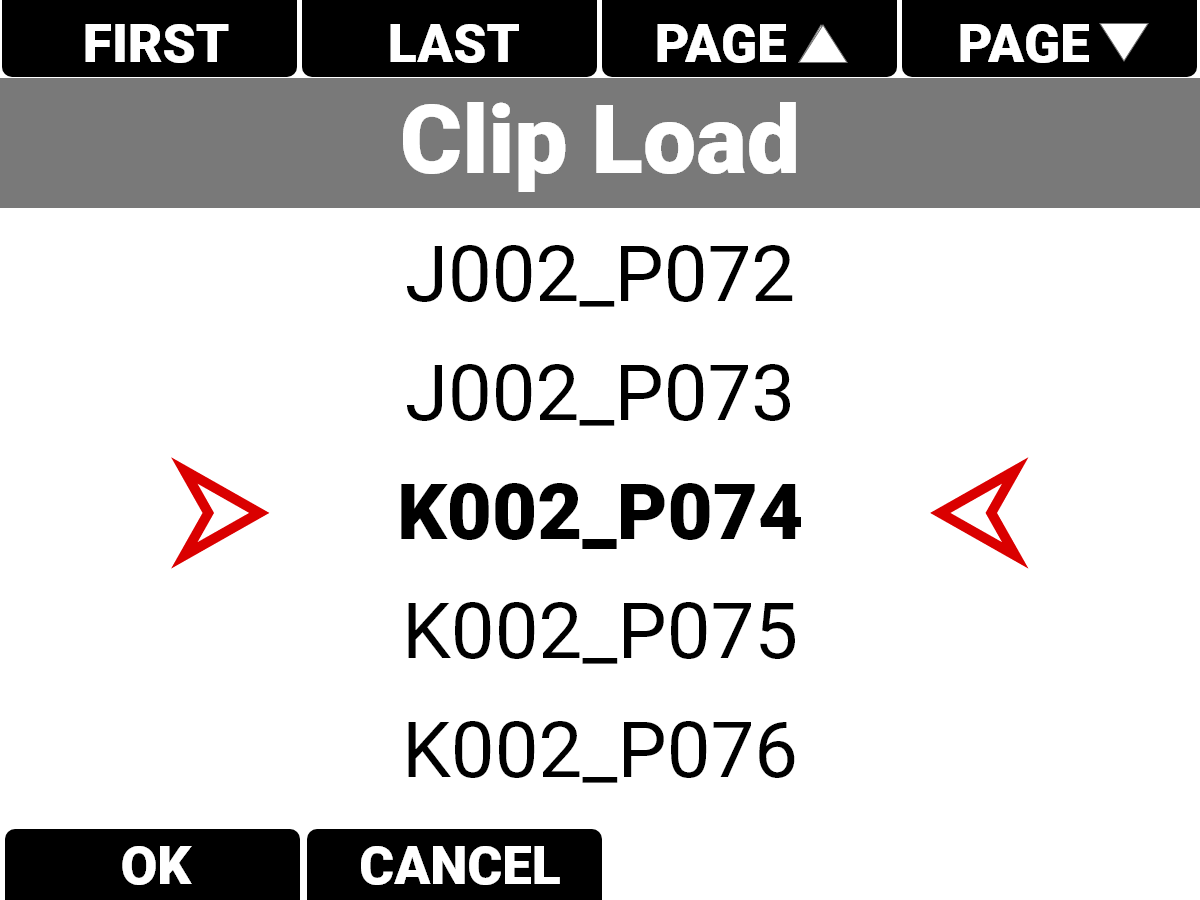
Navigate to the desired clip and press the button under OK to open the clip in the Playback screen.
Start/End

Press the button above the Start or End button to navigate to the start or end of the clip.
Next Previous
 Press the UP arrow to move forward by a single frame and press the DOWN arrow to reverse by a single frame.
Rewind

Press the button below Rewind to quickly navivigate backwards through the clip.
Play/Pause


Press the button below Play/Pause to toggle between playing the clip and pausing the clip.
Fast Forward

Press the button below Fast Forward to quickly navigate forward through the clip.
Camera

Press the button below CAMERA to return to the camera interface.