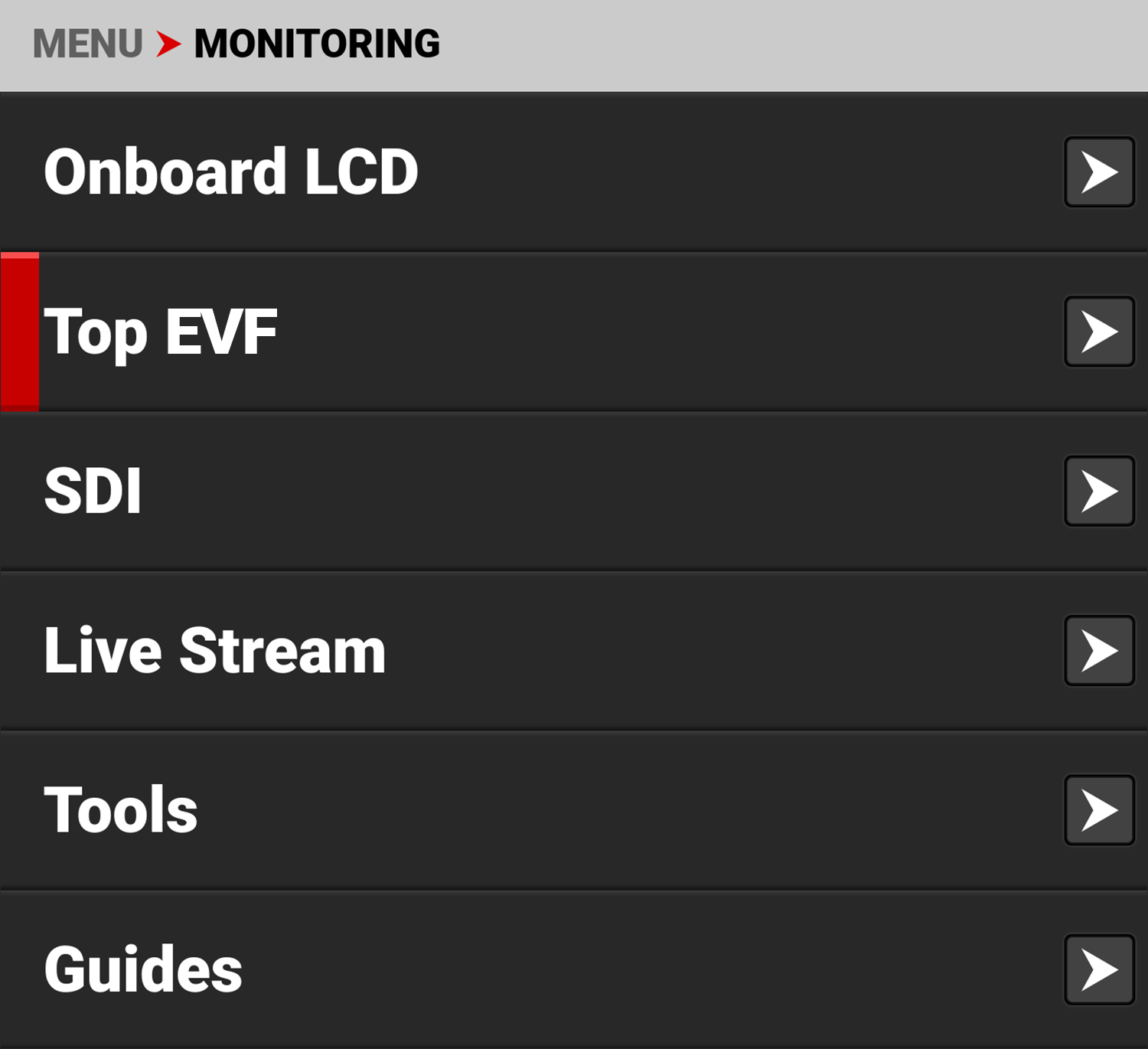
Top EVF
The Top EVF menu provides access to the top EVF features. This menu is only visible when the optional RED Compact EVF and DSMC3™ Adapter A are attached to the camera (refer to RED® Compact EVF).
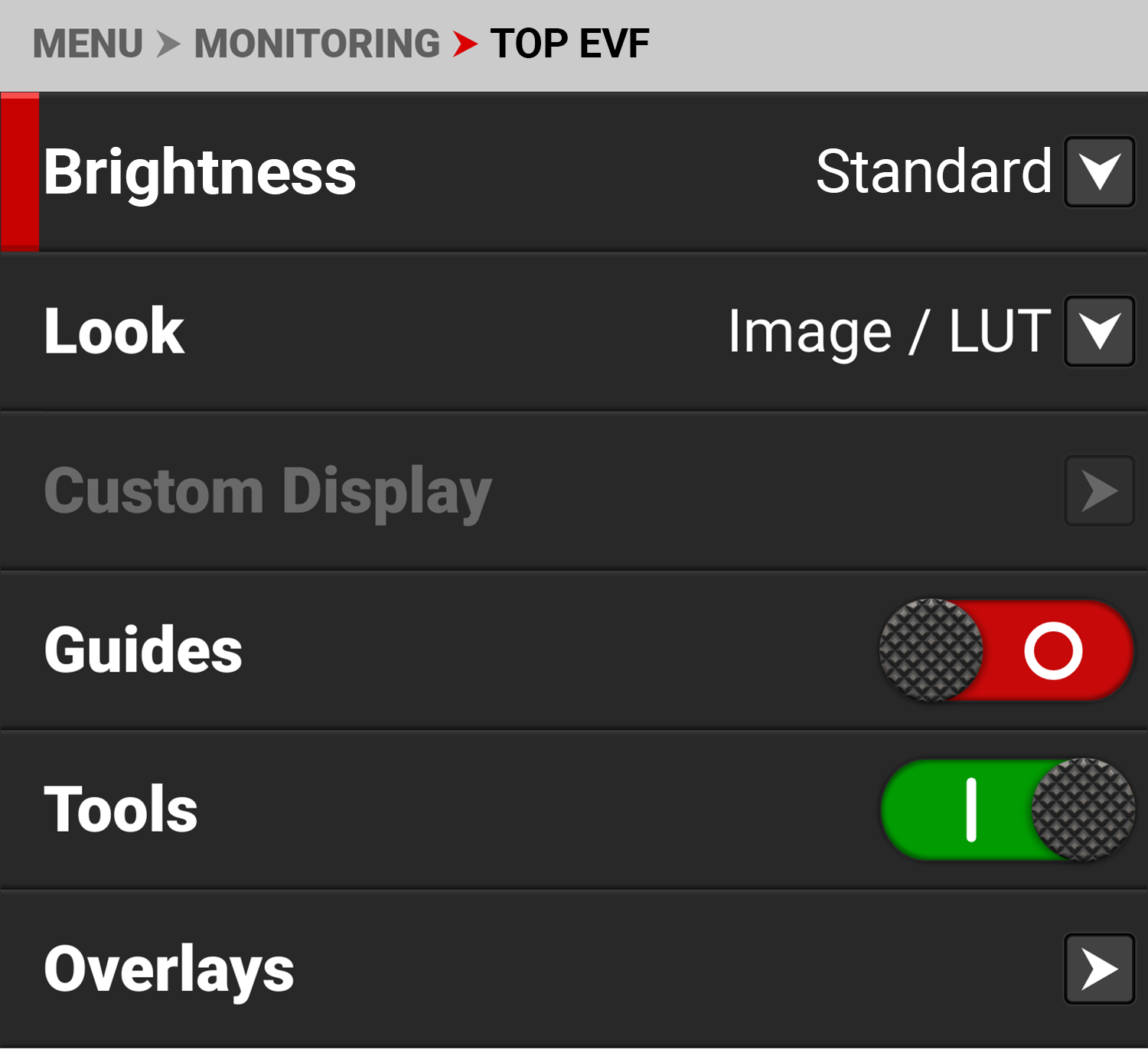
The Top EVF settings you can configure include:
|
Item |
Details |
|---|---|
|
Select the EVF display brightness |
|
|
Set the look of the monitor between RWG / Log3G10 or Image / LUT |
|
|
Configure the look of the monitor independently of other monitor pipelines |
|
|
Enable or disable the monitor guides |
|
|
Enable or disable the monitor tools |
|
|
Manage the EVF overlay settings |
|
|
Magnify the monitor image |
|
|
Select the position of the original image to magnify |
|
|
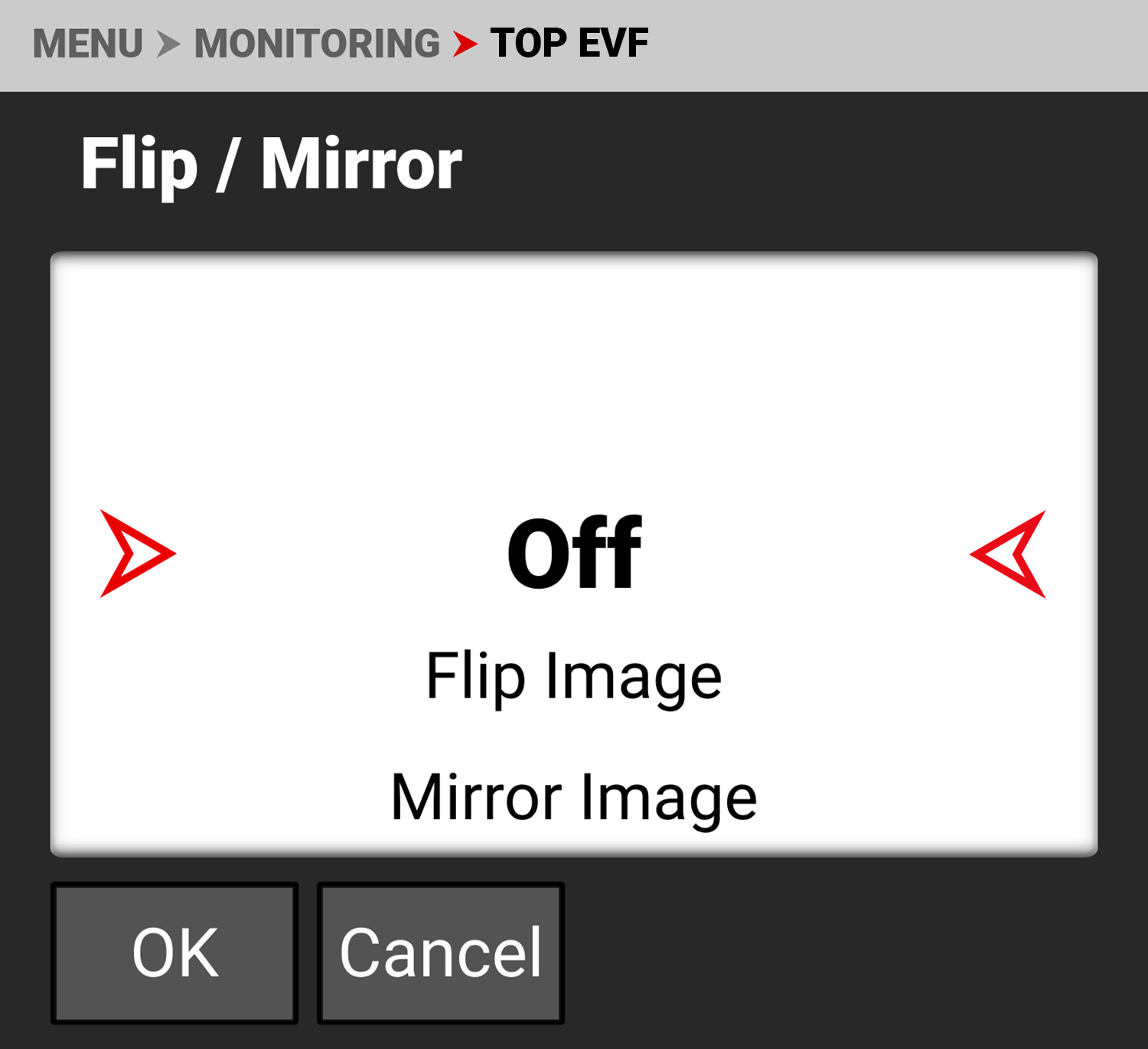
Flip and mirror the EVF display |
Brightness
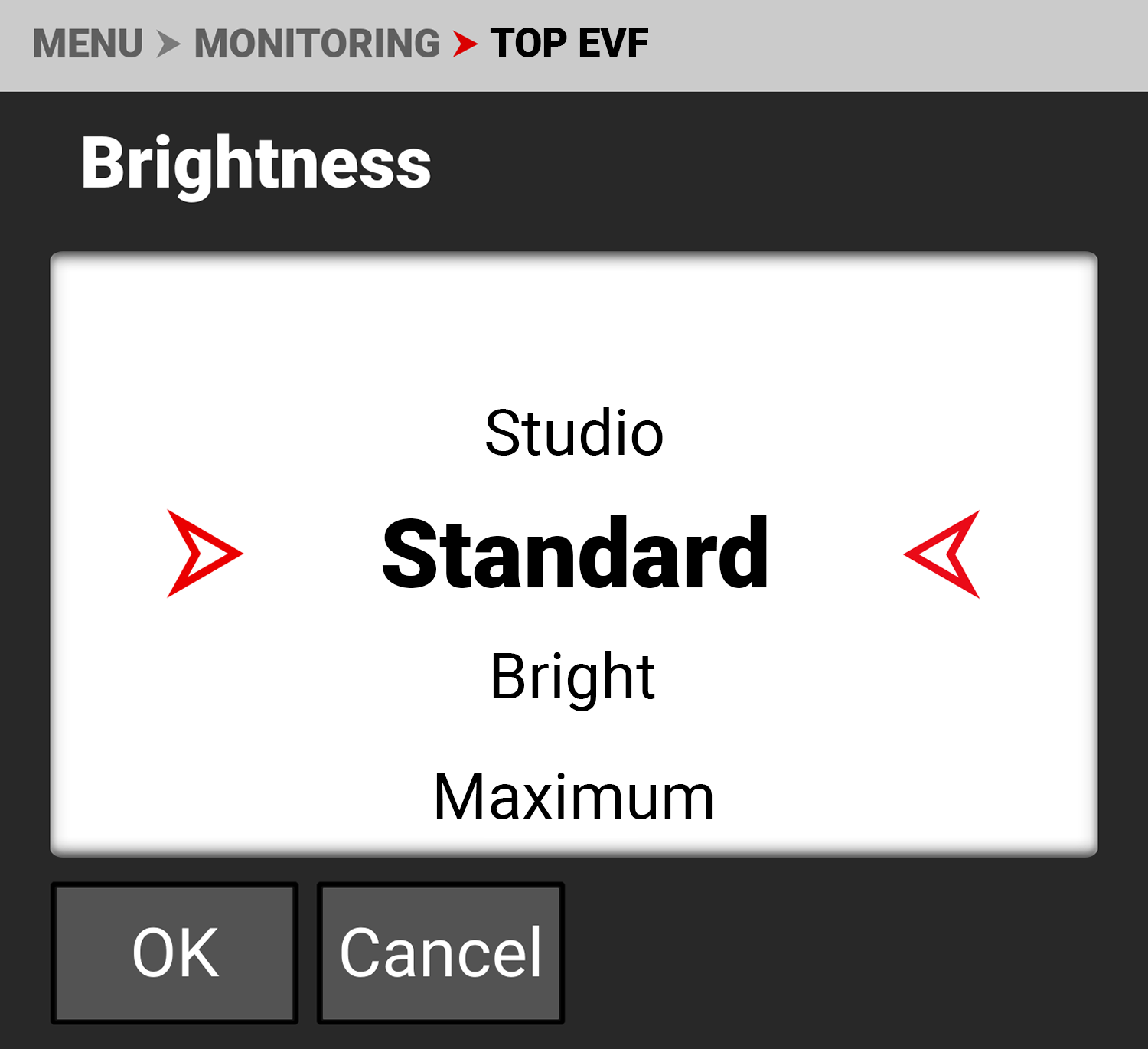
You can select the brightness of the Top EVF display. RED recommends that you select the brightness which best fits your environment to reduce your eye's transition time to and from the EVF.
The selections include:
• Studio - for use in dimly lit environments
• Standard (default) - for use in most situations with mixed lighting
• Bright - for use in most outdoor environments
• Maximum - Used only for extremely bright environments.
Look
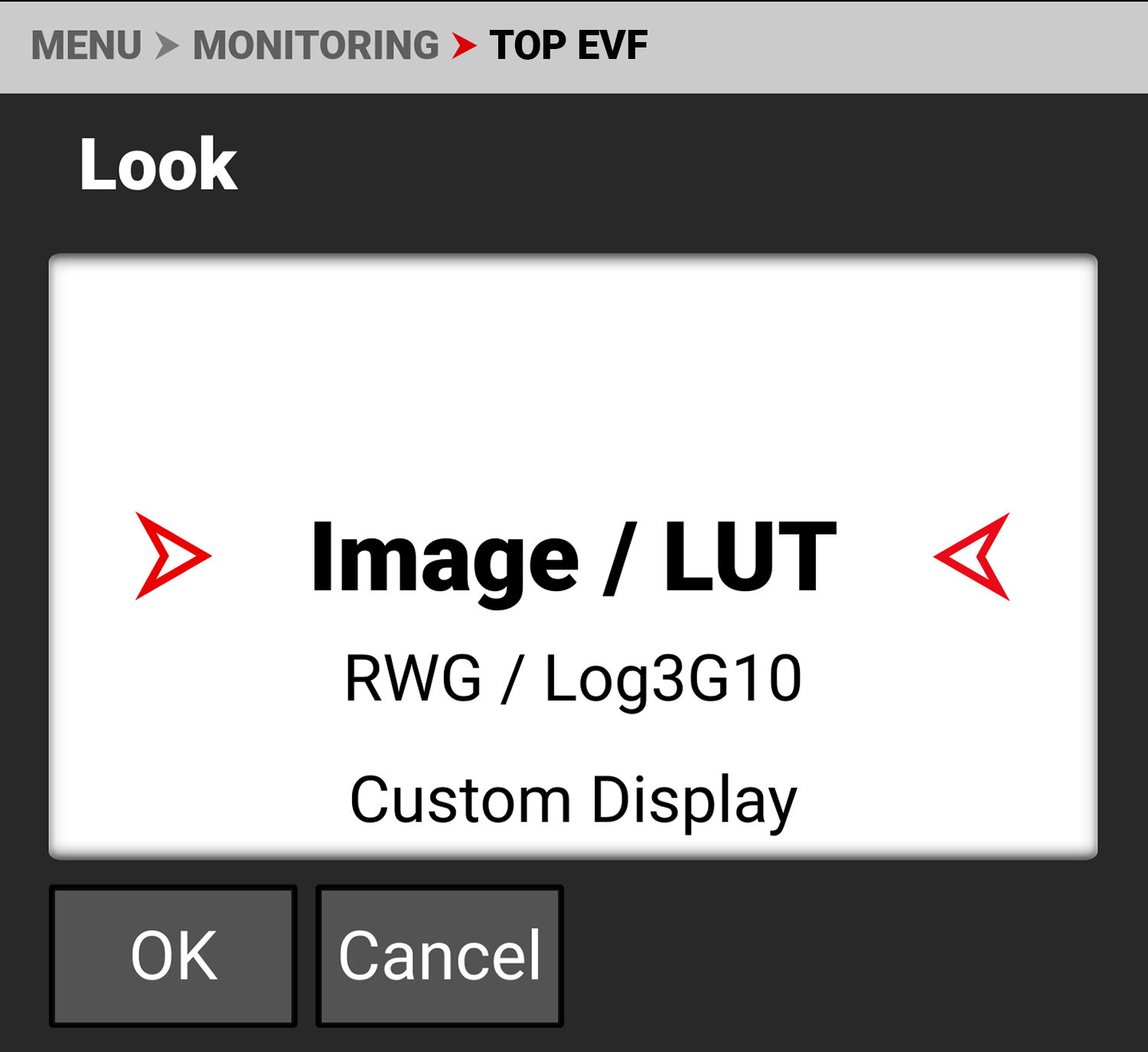
You can select the look of the image preview signal sent to the Top EVF.
The selections include:
• Image / LUT (default)
• REDWideGamutRGB / Log3G10
• Custom Display (enables the Custom Display menu)
Custom Display
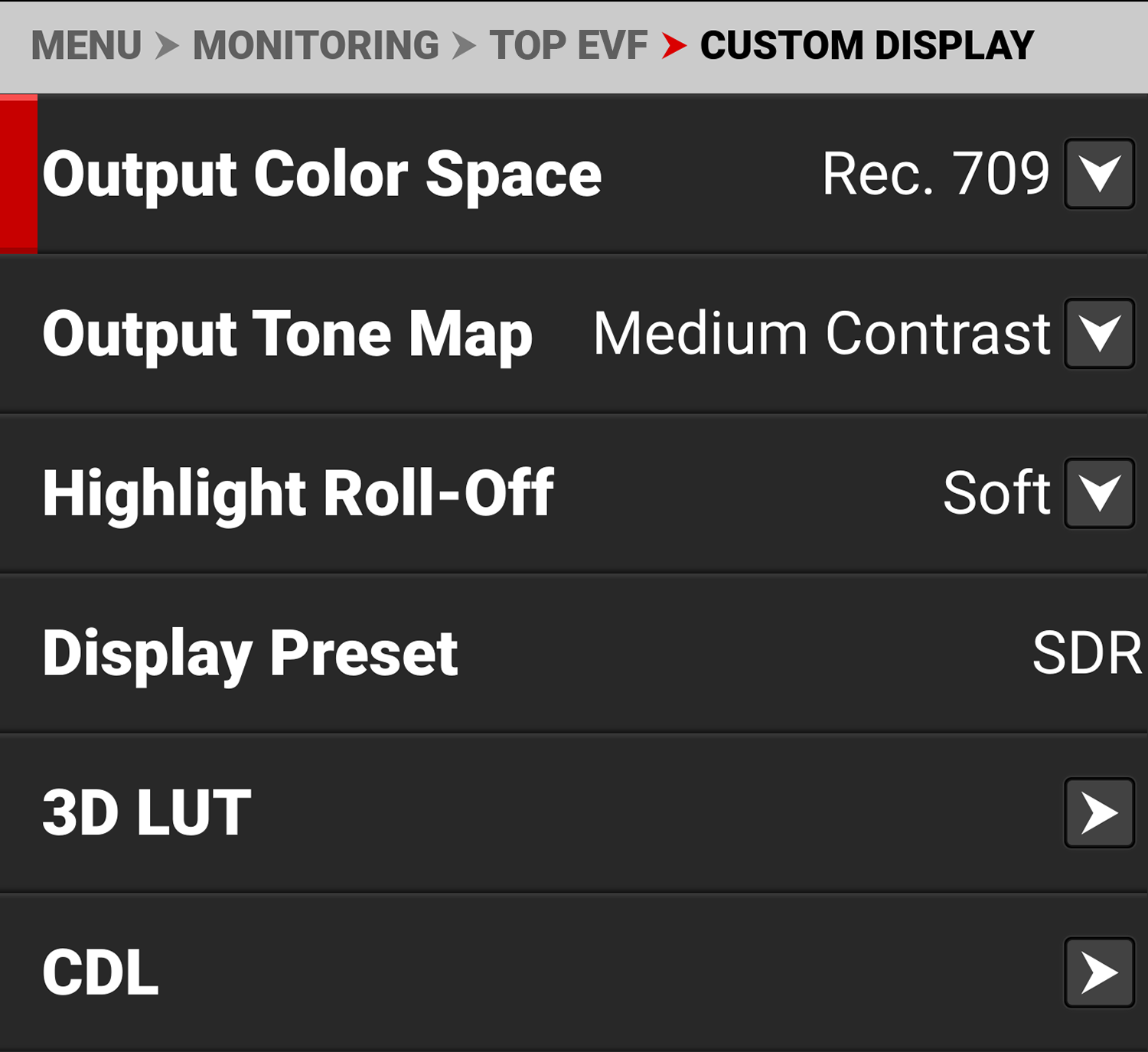
Use Custom Display to configure the Top EVF independently of the camera's Image / LUT settings or other monitor output configurations.
Refer to Image / LUT Menu for more information about how to use the Image/LUT settings and menus.
Guides
Use Guides to enable or disable the viewing of guides. Press SEL to toggle between enabled (default) and disabled.


Tools
Use Tools to enable or disable the viewing of tools. Press SEL to toggle between enabled (default) and disabled.


Overlays
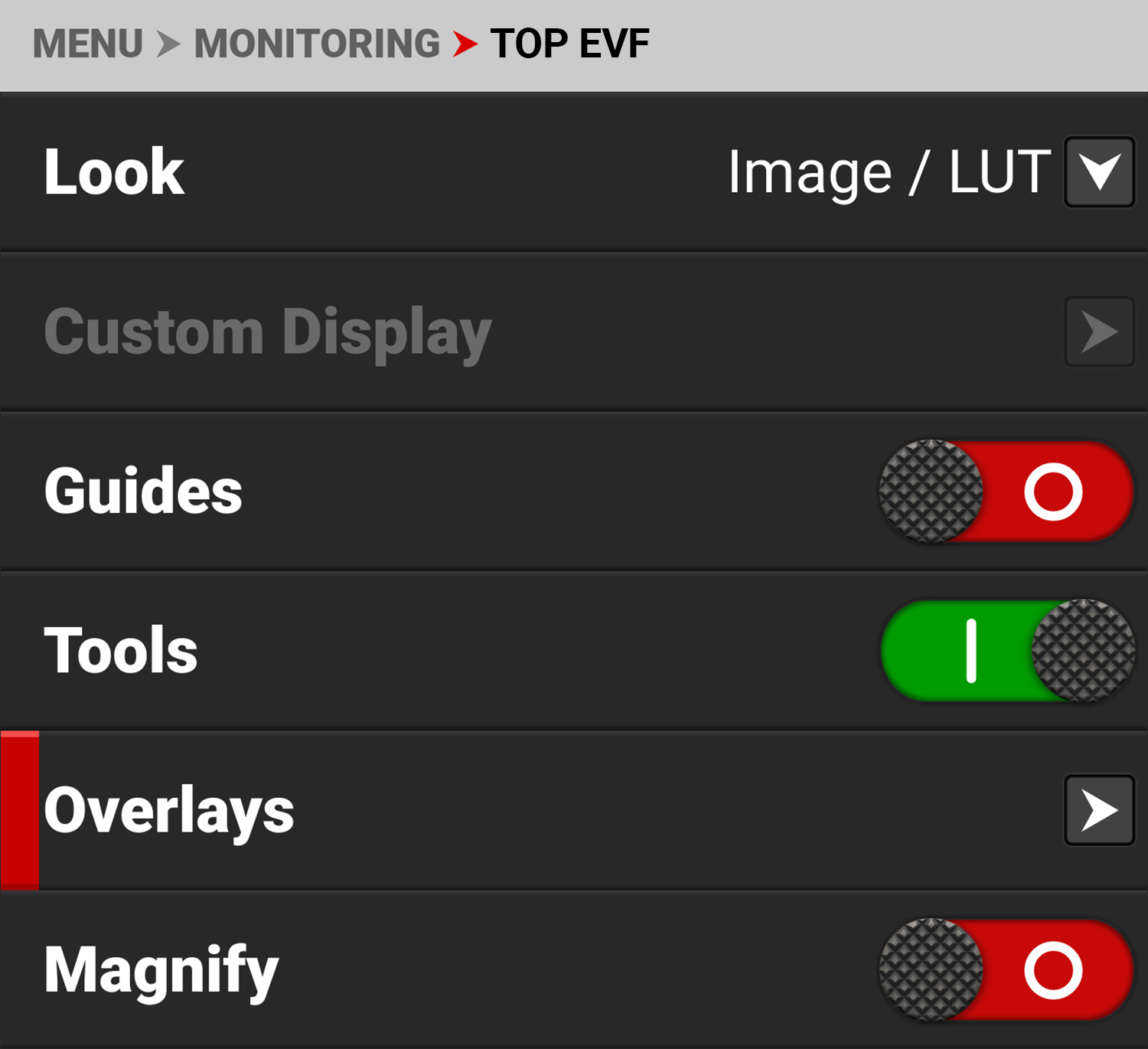
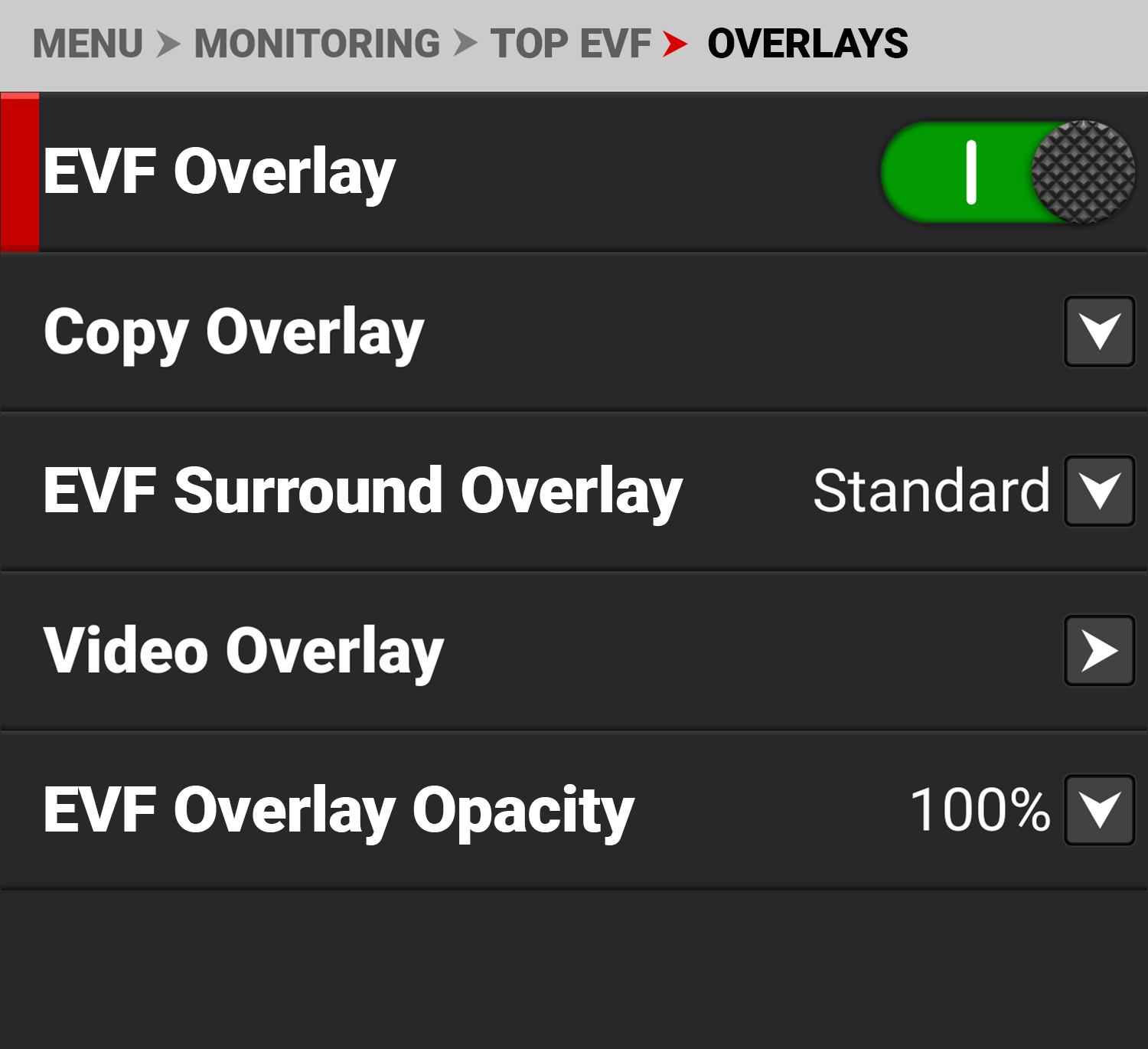
Use Overlays to manage the EVF overlay settings. These settings include:
|
Item |
Details |
|---|---|
|
EVF Overlay |
Enable or disable the EVF overlay display |
|
Copy an overlay from or to the SDI to or from the Top EVF |
|
|
Select the overlay surround type |
|
|
Manage the video overlay display values |
|
|
Select the opacity of the overlay |
Copy Overlay
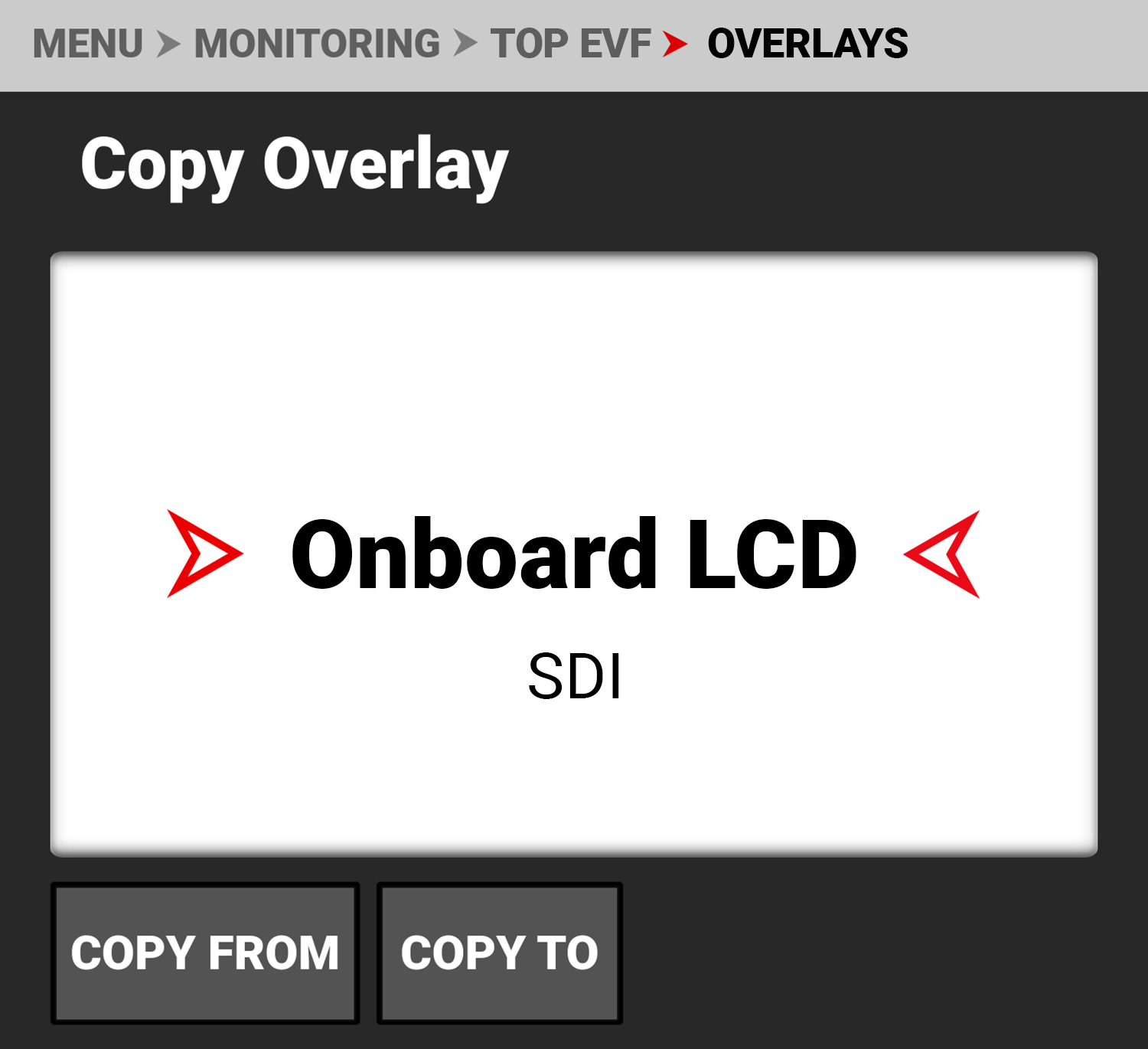
Use Copy Overlay to copy an overlay from or to the Onboard LCD or SDI, to or from the Top EVF.
EVF Surround Overlay
Use EVF Surround Overlay to select the overlay surround type you want to use for the EVF display.
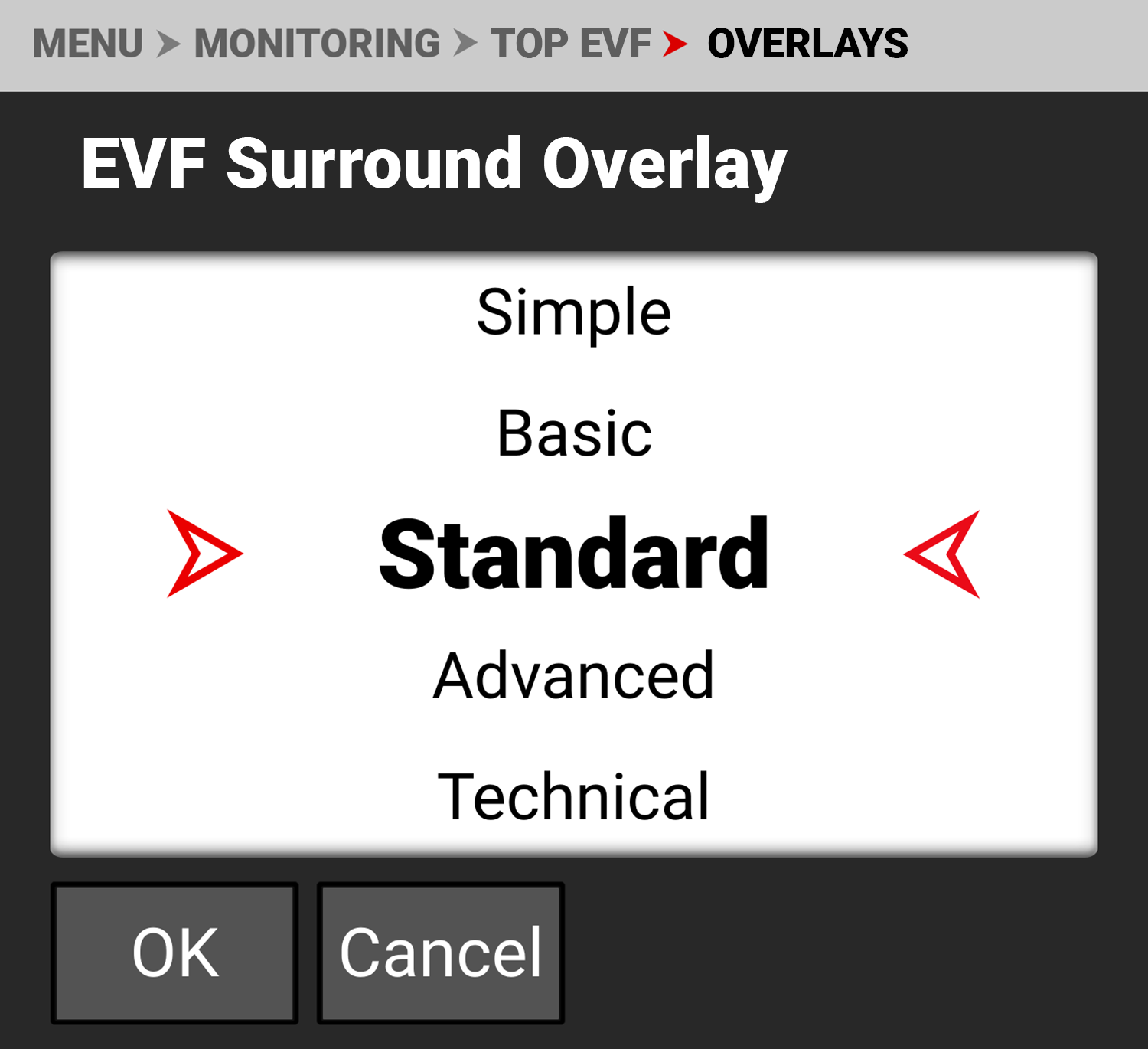
The EVF Surround types include: None, Simple, Basic, Standard, Advanced, and Technical (refer to SDI for more information about Surround Overlays).
Video Overlay
Use Video Overlay to manage overlay items displayed on top of the video preview.
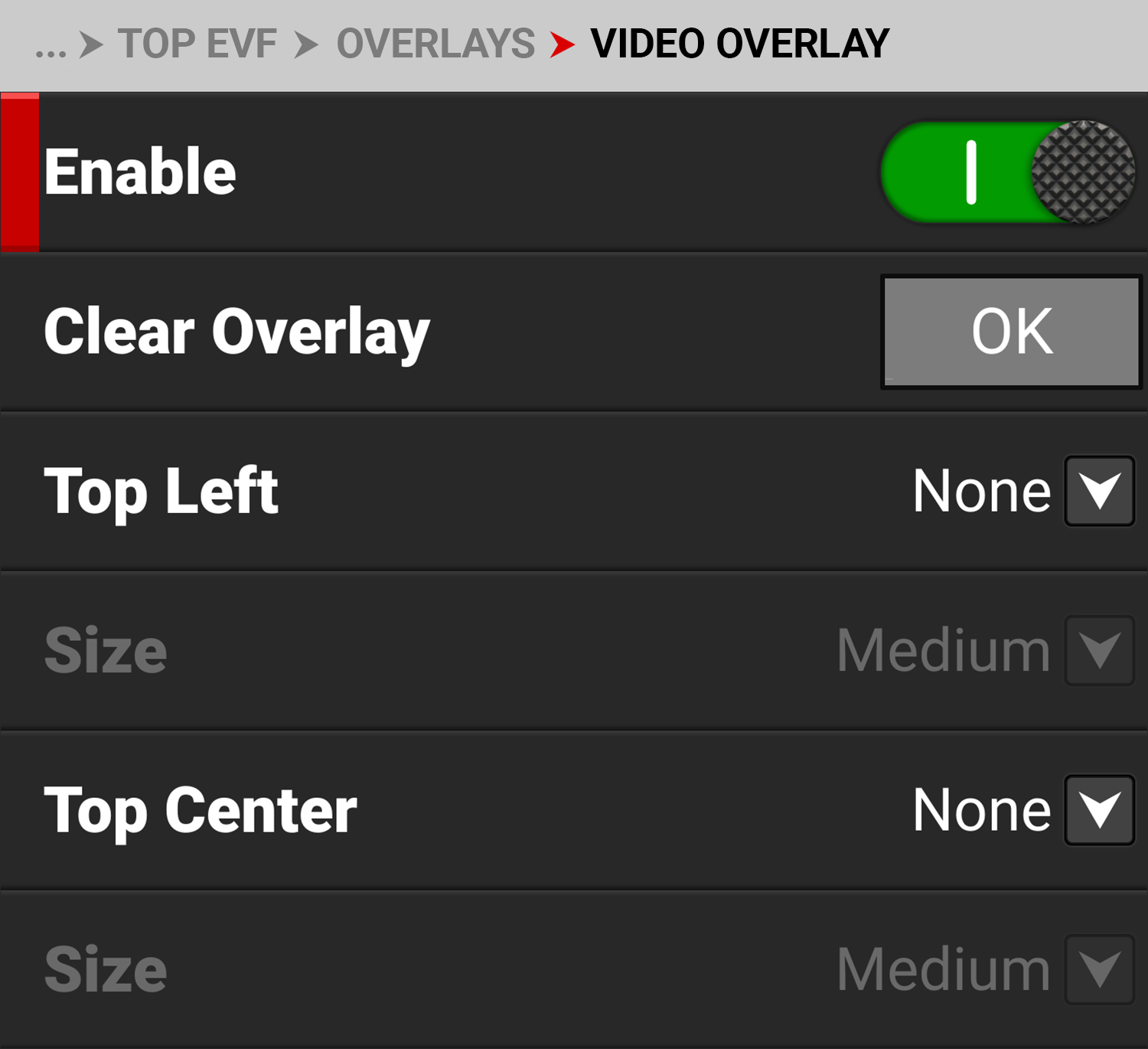
The Video Overlay display value management settings include:
|
Item |
Details |
|---|---|
|
Enable |
Enable or disable video value management |
|
Clear all of the settings from the EVF video overlay |
|
|
Select the location and value for the EVF video overlay values |
|
|
Select the size for the EVF video overlay values |
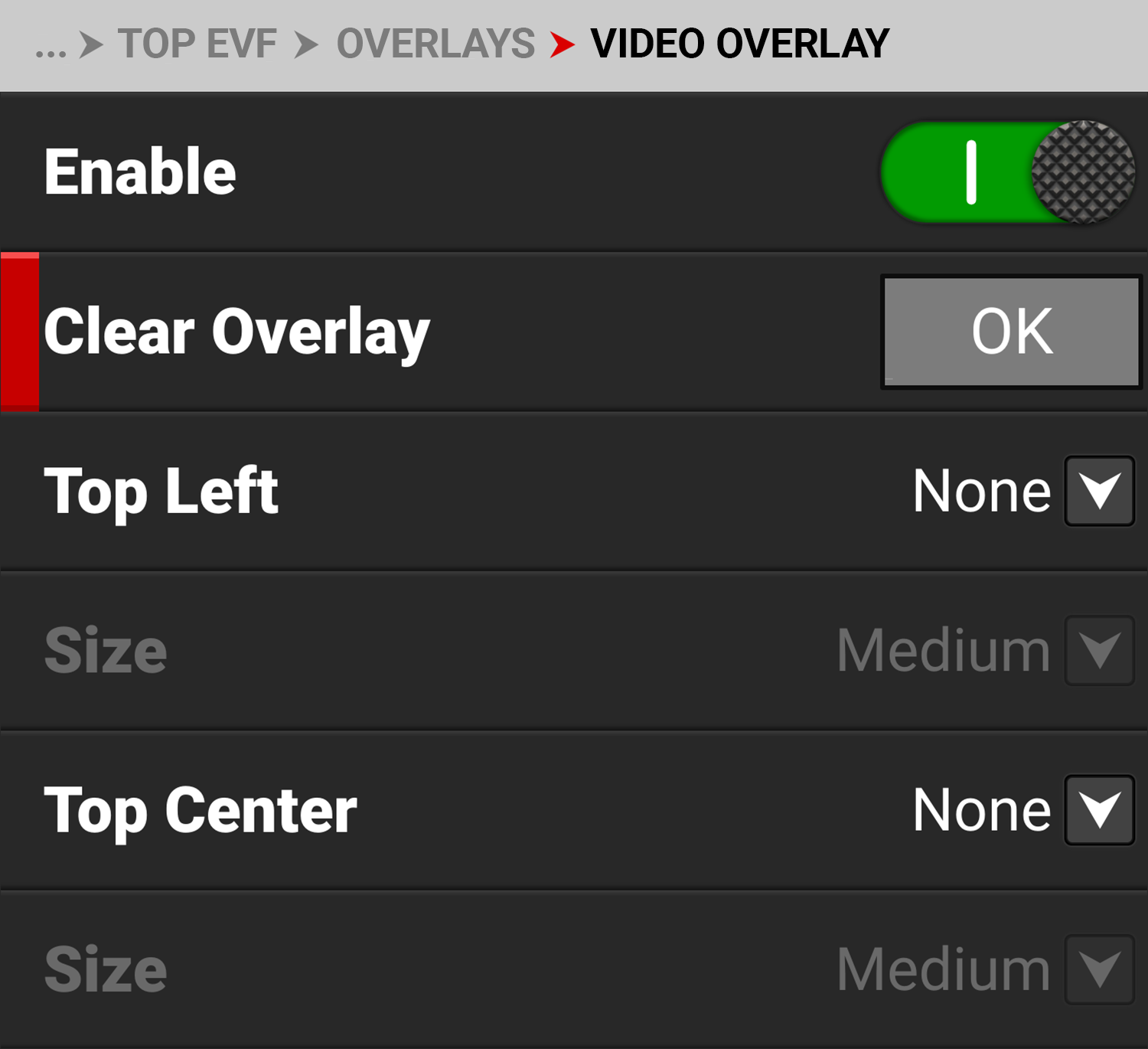
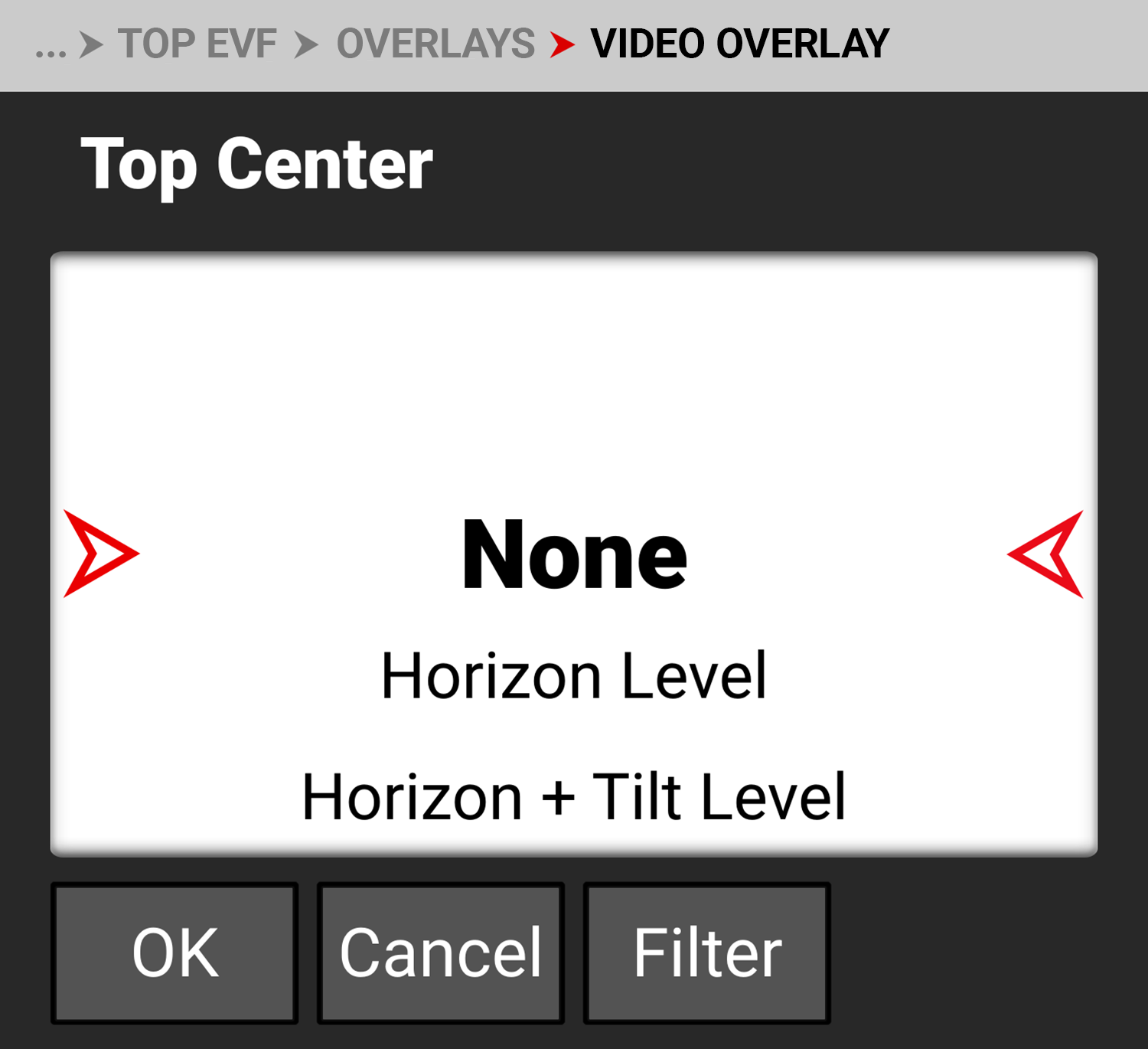
The values you can display include:
|
Item |
Details |
|---|---|
|
None |
Nothing is assigned |
|
Horizon Level |
Displays the horizon orientation (center locations only) |
|
Horizon + Tilt Level |
Displays the horizon orientation plus added tilt (center locations only) |
|
Gyro Data |
Displays the gyro readings |
|
Histogram |
Displays the histogram |
|
RGB RAW Meters |
Displays the RGB RAW meters |
|
ISO |
Displays the ISO setting |
|
Shutter |
Displays the shutter setting |
|
Color Temperature |
Displays the color temperature |
|
Color Temperature and Tint |
Displays the color temperature and tint |
|
ND |
Displays the ND setting |
|
3D LUT |
Displays the 3D LUT |
|
Sensor Format |
Displays the sensor format |
|
Frame Rate |
Displays the frame rate |
|
Record Indicator |
Red indicator when recording |
|
Focal Length |
Displays the lens focal length |
|
Focus Distance |
Displays the lens focus distance |
|
Lens Information |
Displays the lens information |
|
Aperture |
Displays the aperture setting |
|
Camera Name |
Displays the camera name |
|
Clip Name |
Displays the clip name |
|
Slate Camera ID |
Displays the slate camera ID |
|
Slate Camera Position |
Displays the slate camera position |
|
Slate Camera Operator |
Displays the slate camera operator |
|
Slate Scene |
Displays the slate scene |
|
Slate Shot |
Displays the slate shot |
|
Slate Take |
Displays the slate take |
|
Slate Production |
Displays the slate production |
|
Slate Director |
Displays the slate director |
|
Slate DoP |
Displays the slate DoP |
|
Slate Unit |
Displays the slate unit |
|
EVF Brightness |
Displays the EVF brightness setting |
|
Media Time Remaining |
Displays the media time remaining |
|
Media Percentage Remaining |
Displays the percentage of media remaining |
|
Battery Time Remaining |
Displays the battery time remaining |
|
Battery Percentage Remaining |
Displays the battery percentage remaining |
|
Active Input Voltage |
Displays the active input voltage |
|
Low Power Warning |
Displays the Low Power Warning value |
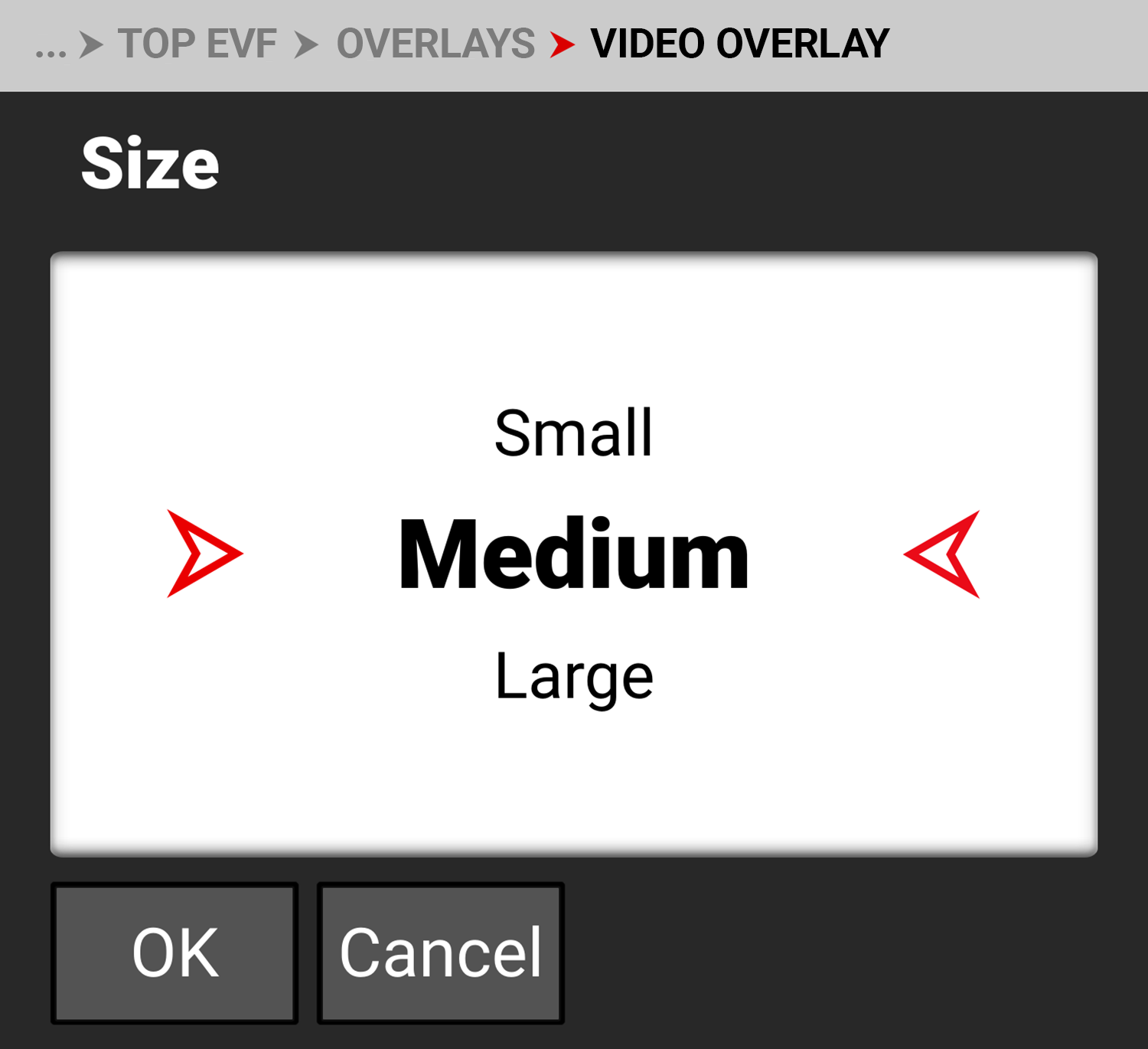
EVF Overlay Opacity
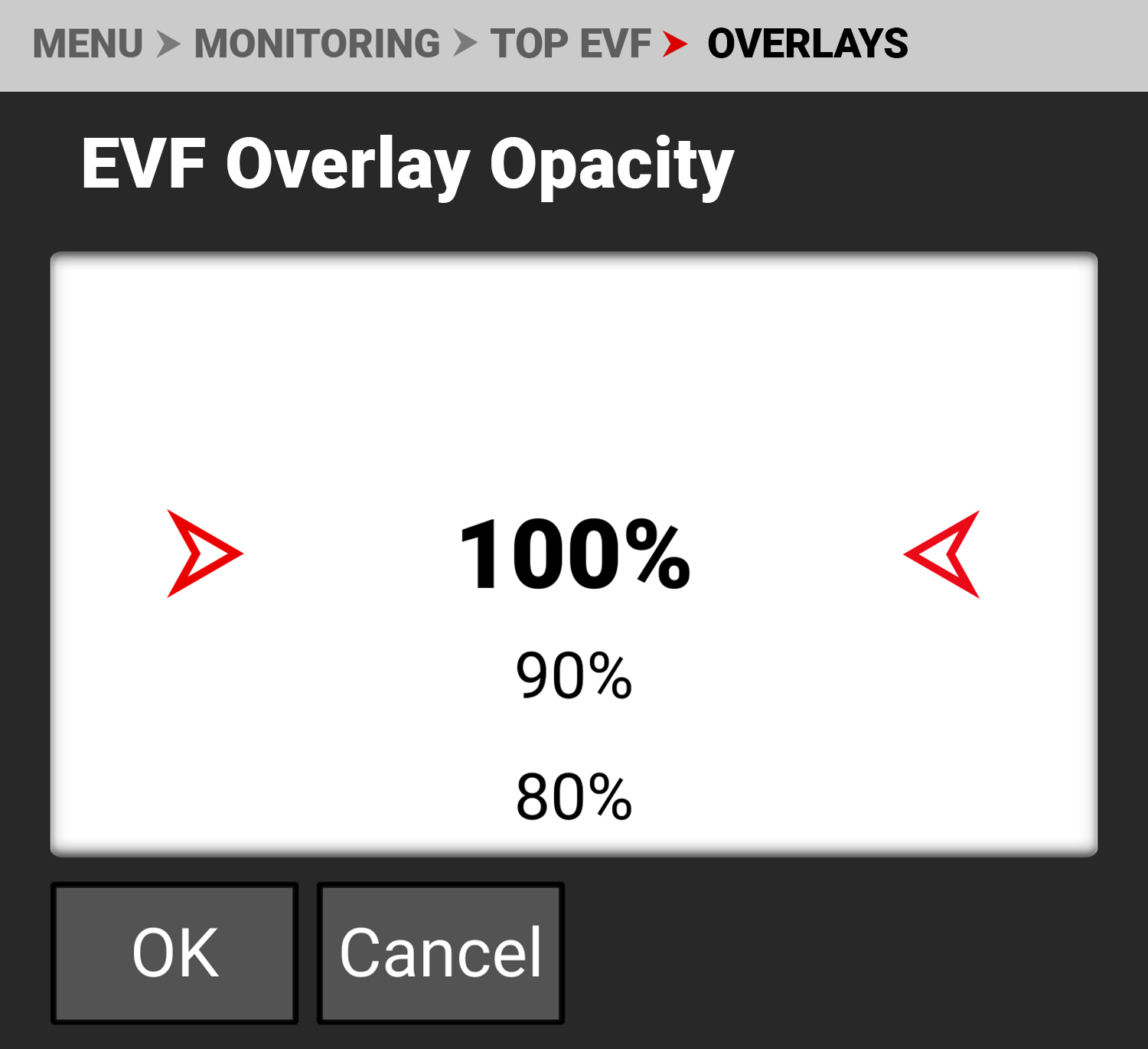
Use EVF Overlay Opacity to select the opacity of the EVF overlay.
The settings you can select range from 100% (default) to 0%.
Magnify
Use Magnify to enable or disable EVF magnification. Press SEL to toggle between enabled and disabled (default).


Magnify Position
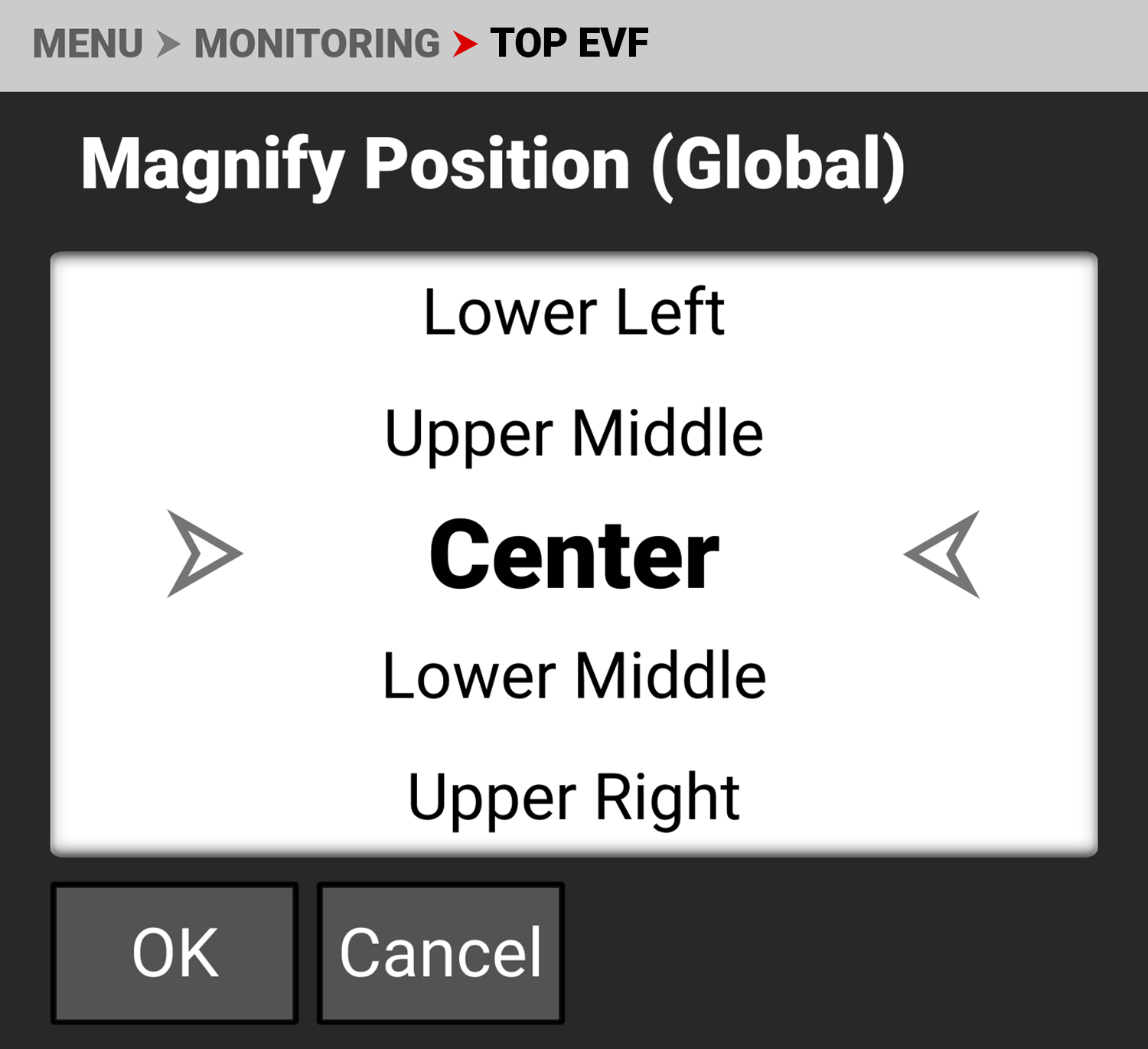
Use Magnify Position to globally select the area of the image you want to magnify.
The selections include:
|
• Left |
• Upper Middle |
• Upper Right |
|
• Upper Left |
• Center (default) |
• Lower Right |
|
• Lower Left |
• Lower Middle |
• Right |