Top Port
The Top Port menu provides access to the top port features. This menu is visible when nothing is attached to the Top Port.
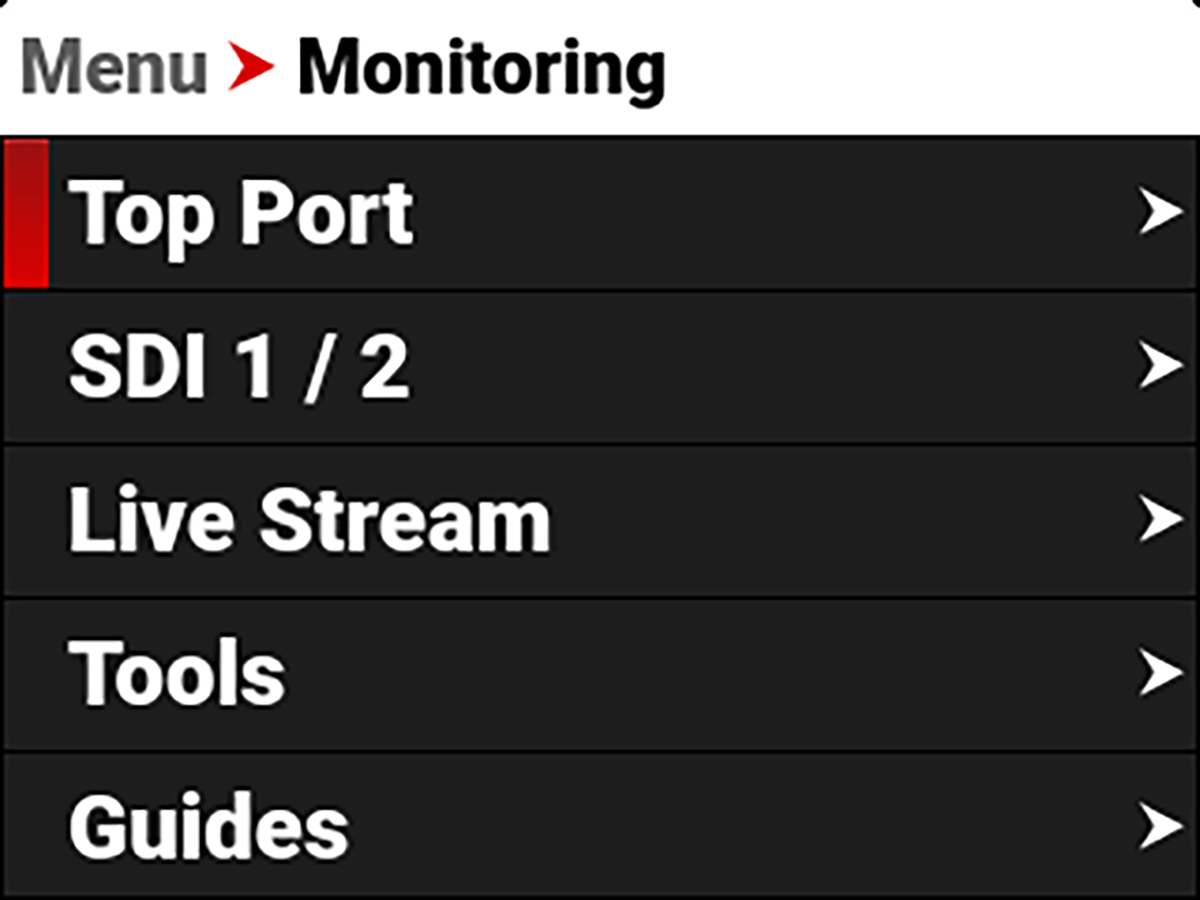
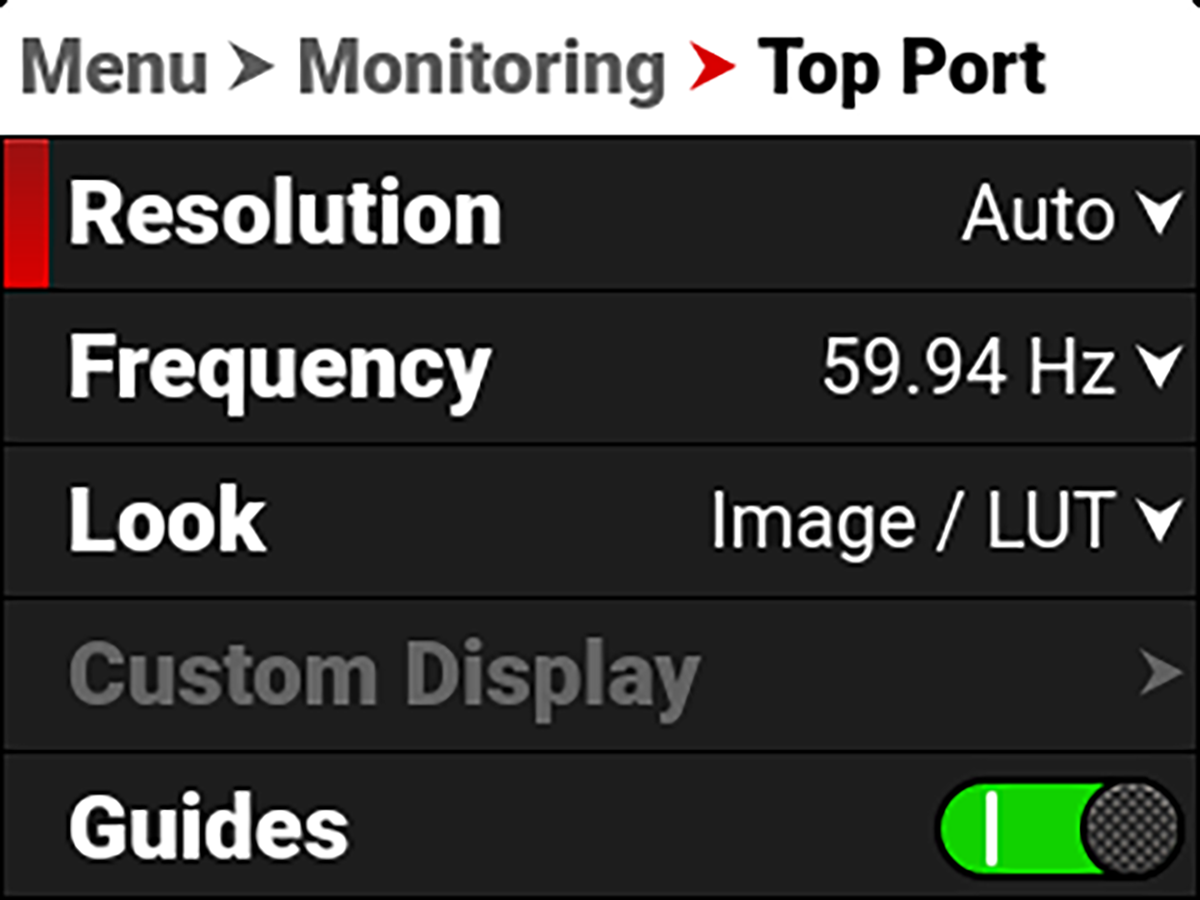
The Top Port settings you can configure include:
|
Item |
Details |
|---|---|
|
Select the Phantom Track to display |
|
|
Select the monitor resolution |
|
|
Set the look of the monitor between RWG / Log3G10 or Image / LUT |
|
|
Set the look of the monitor between RWG / Log3G10 or Image / LUT |
|
|
Select the gamma displayed on the monitor |
|
|
Enable or disable the monitor guides |
|
|
Enable or disable the monitor tools |
|
|
Magnify the monitor image |
|
|
Select the position of the original image to magnify |
|
|
Flip and mirror the top port display |
Source (Phantom Track)
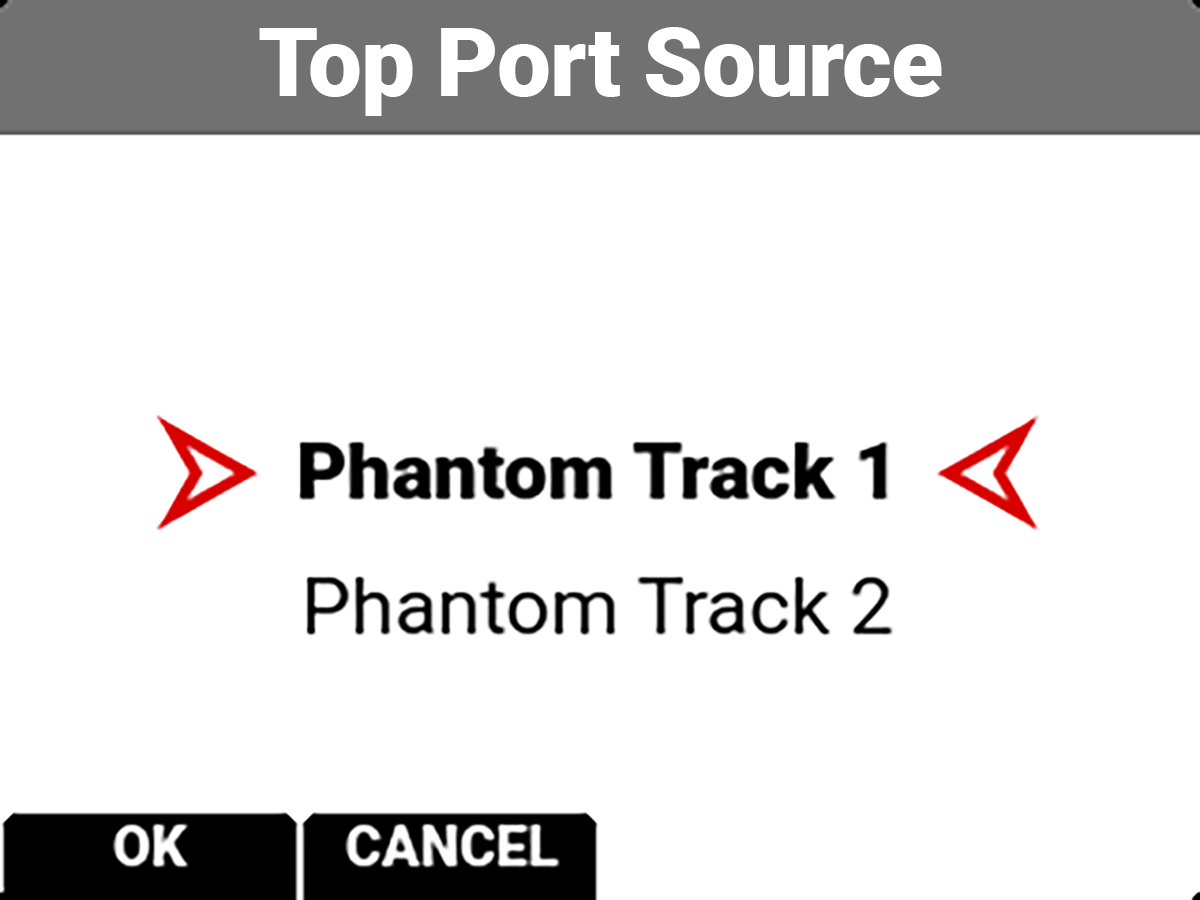
When Phantom Track is enabled, this menu appears, allowing you to select which Phantom Track to display.
Resolution
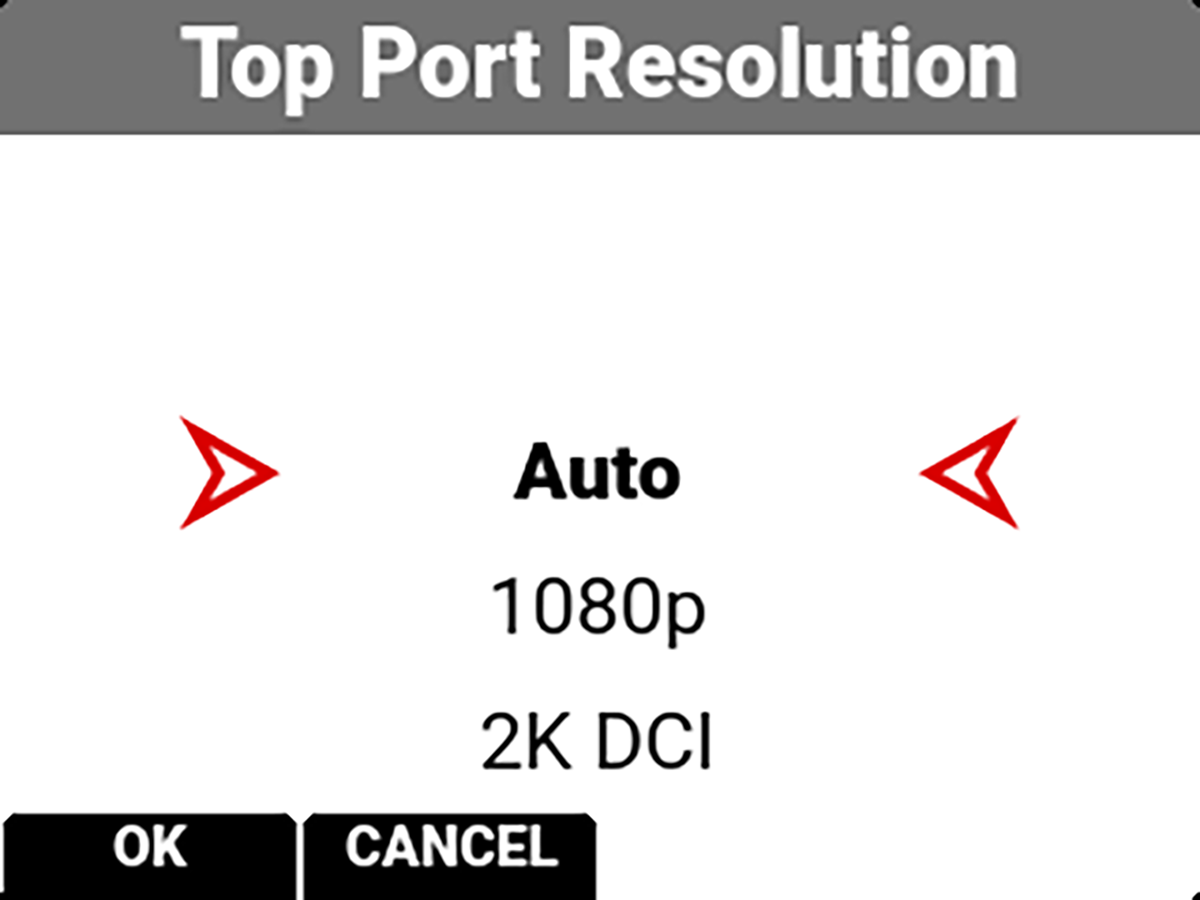
You can select the resolution of the Top Port.
The selections include:
• Auto (default)
• 1080p
• 2K DCI
Frequency
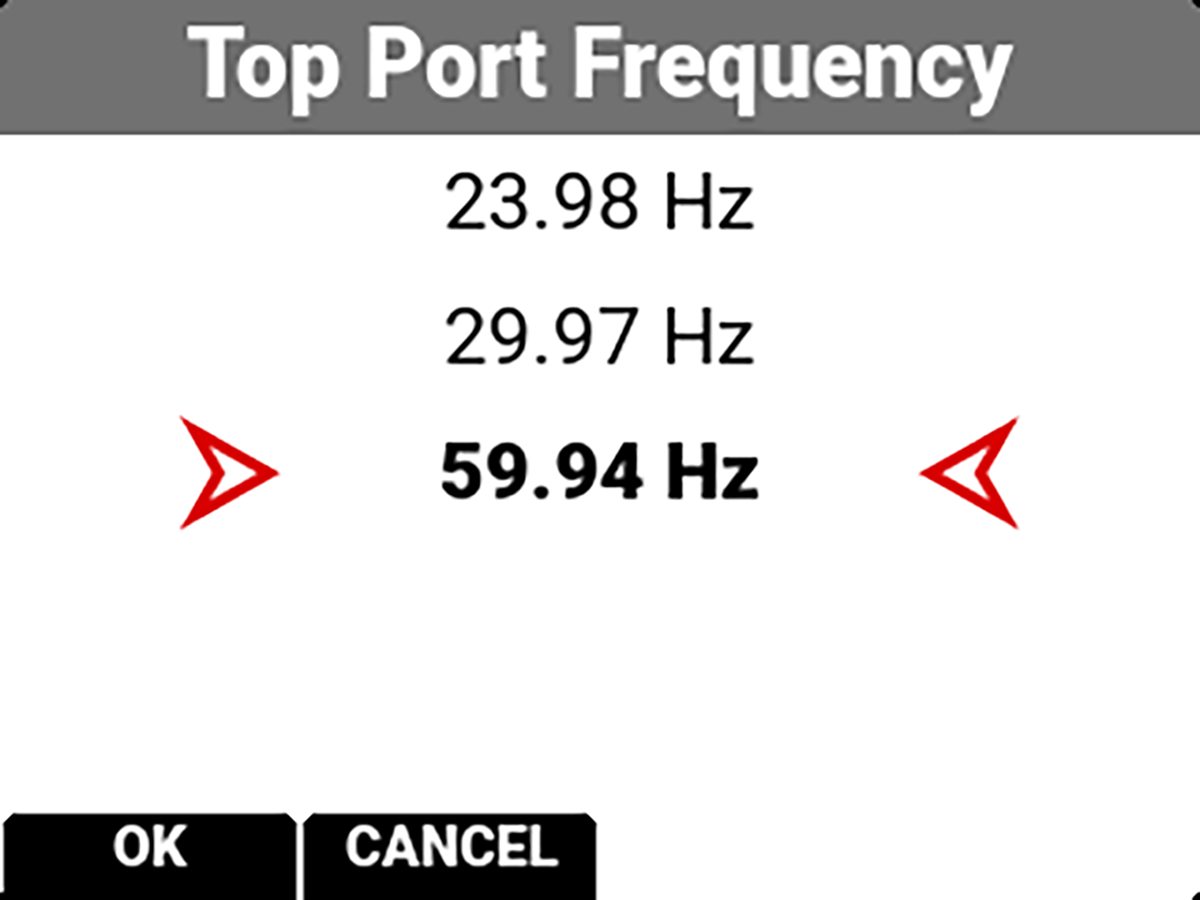
Use Frequency to select one of the following top port frequency settings:
• 23.98 Hz
• 29.97 Hz
• 59.94 Hz
The camera displays different choices depending on which Project Time Base you have selected.
Look
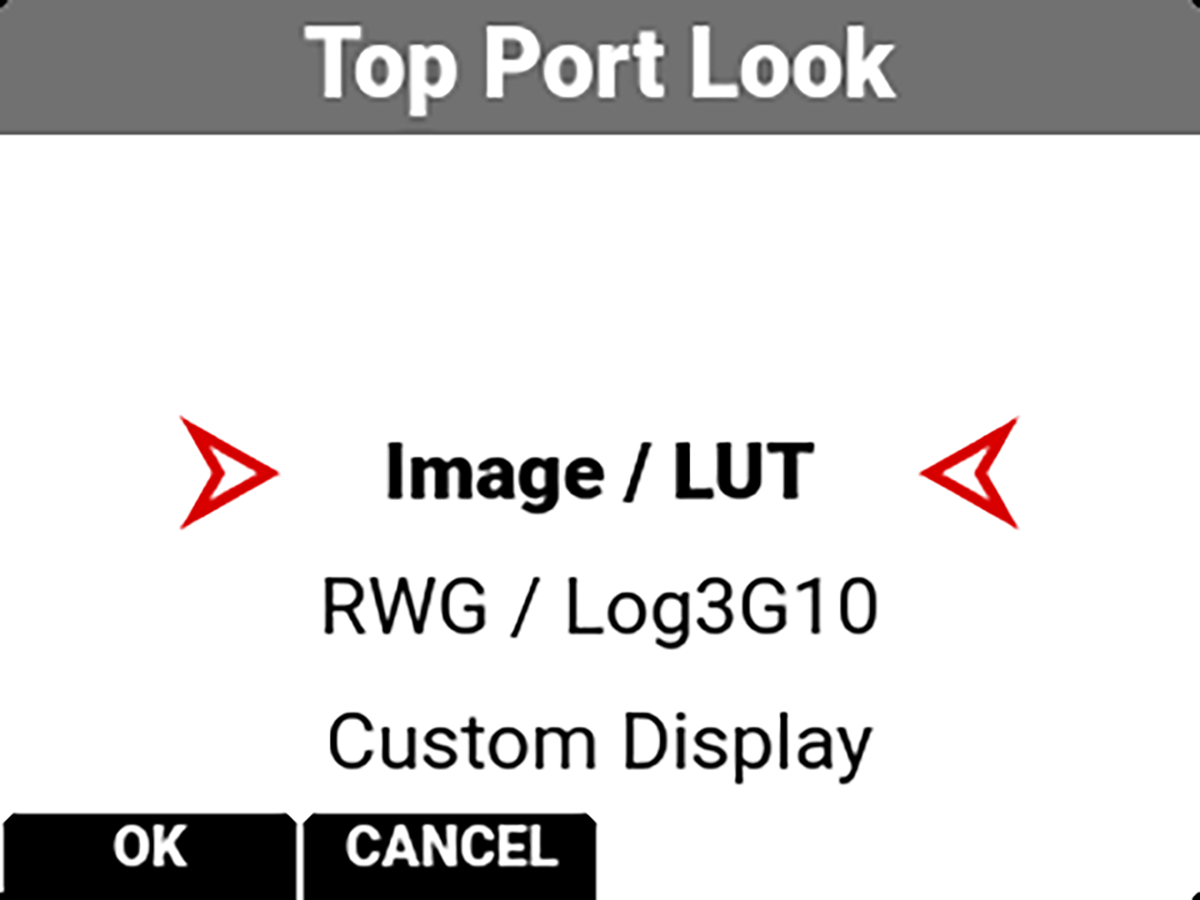
You can select the look of the image preview signal sent to the Top Port.
The selections include:
• Image / LUT (default)
• REDWideGamutRGB / Log3G10
• Custom Display (enables the Custom Display menu)
Custom Display
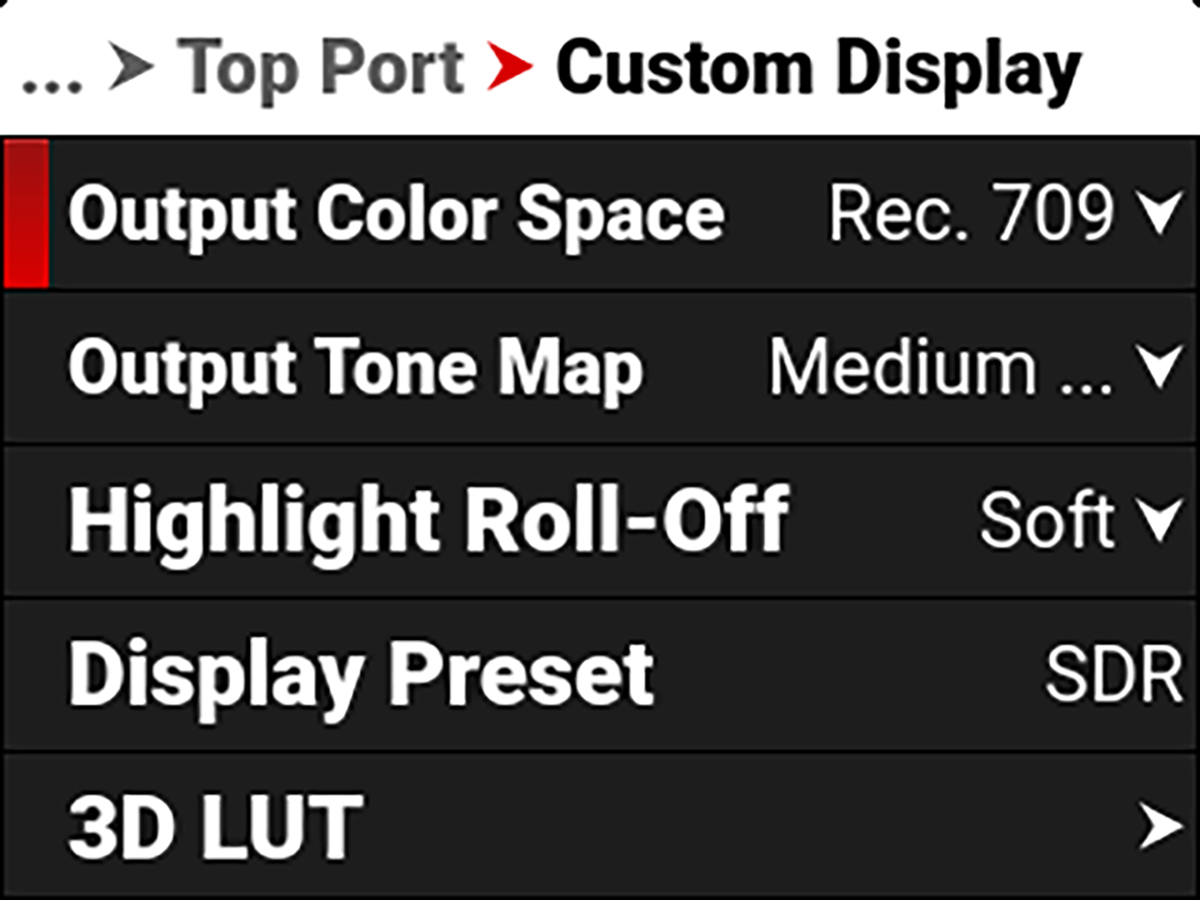
Use Custom Display to select the Top Port's Image/LUT settings.
Refer to Image / LUT Menu for more information about the Image/LUT settings and menus.
Guides
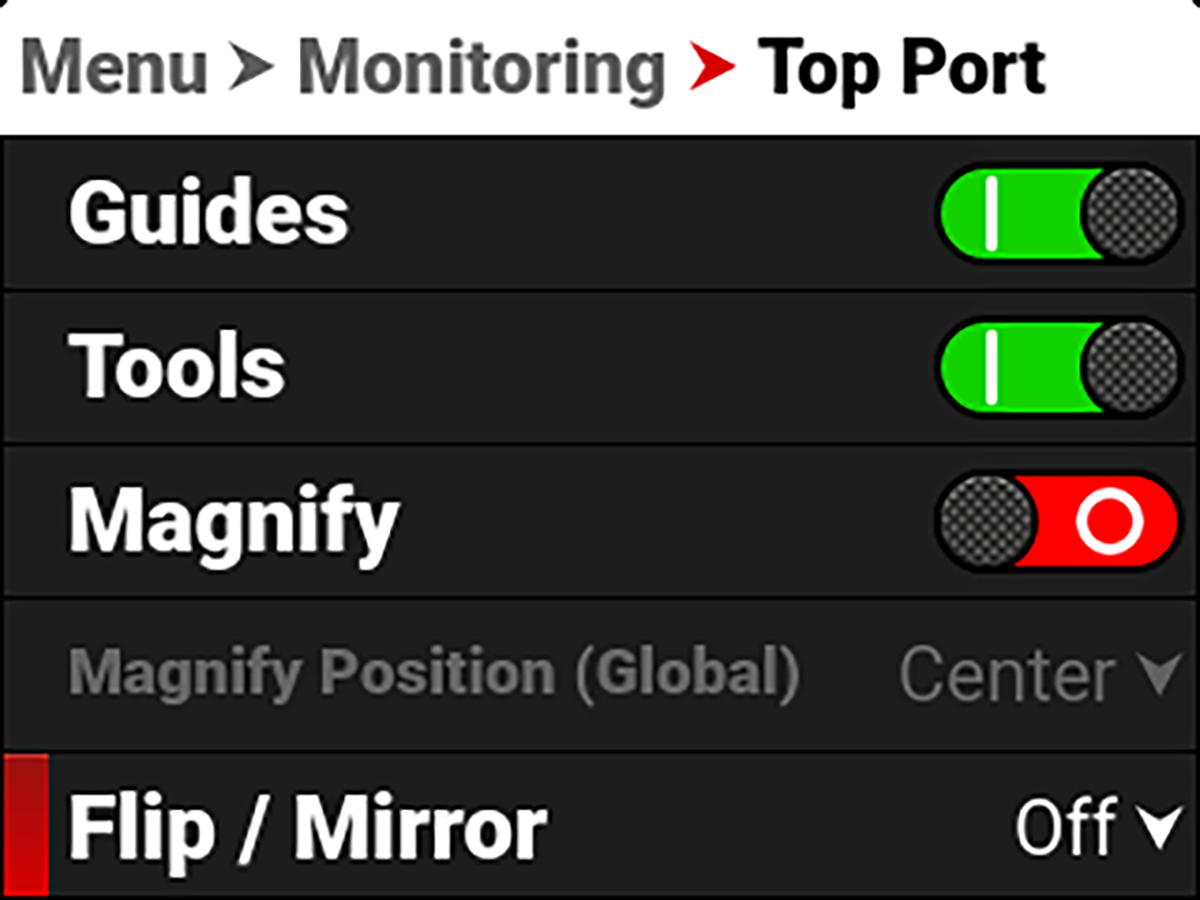
Use Guides to enable or disable the viewing of guides. Press SEL to toggle between enabled (default) and disabled.


Tools
Use Tools to enable or disable the viewing of tools. Press SEL to toggle between enabled (default) and disabled.


Magnify
Use Magnify to enable or disable monitor magnification. Press SEL to toggle between enabled and disabled (default).


Magnify Position
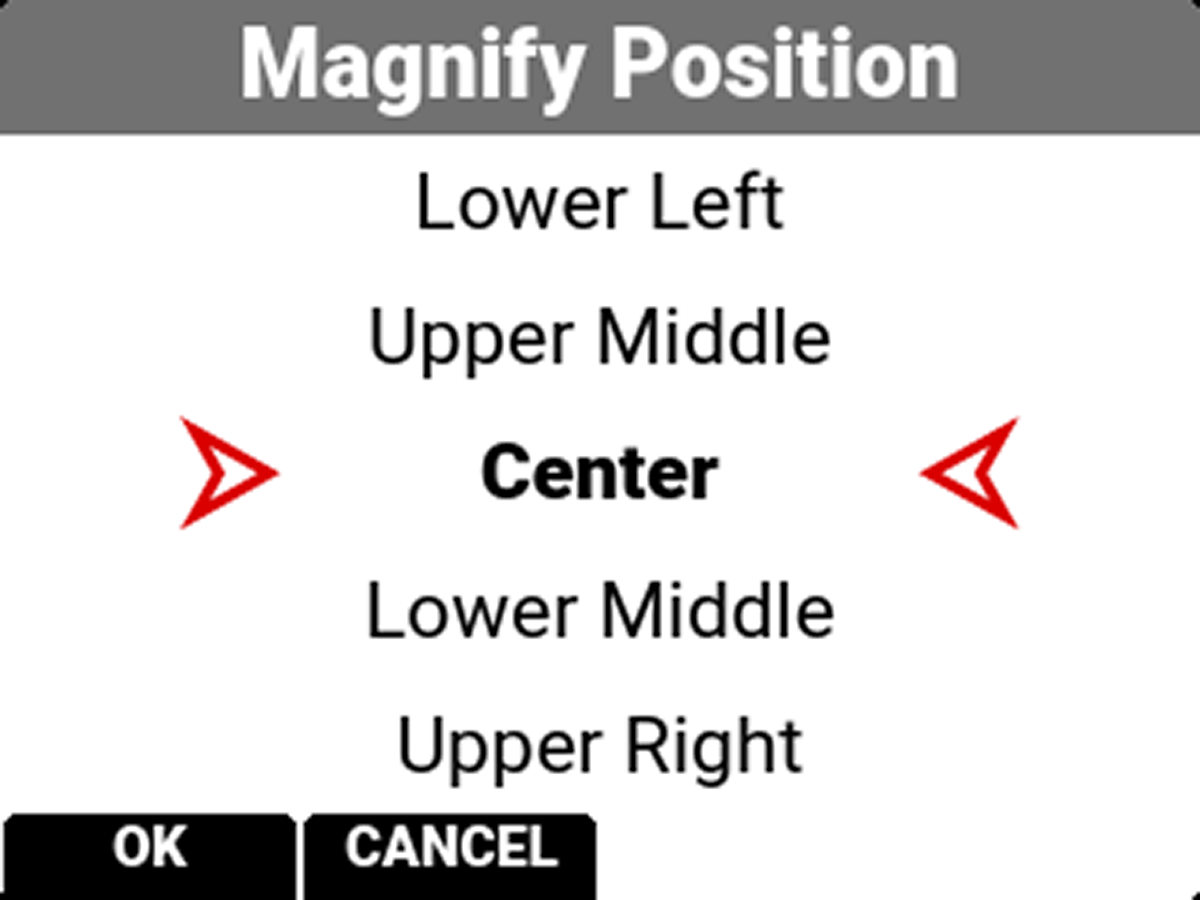
Use Magnify Position to globally select the area of the image you want to magnify.
The selections include:
|
• Left |
• Upper Middle |
• Upper Right |
|
• Upper Left |
• Center (default) |
• Lower Right |
|
• Lower Left |
• Lower Middle |
• Right |
Flip / Mirror
Use Flip / Mirror to select the flip and mirror orientation you want to use for the monitor display.
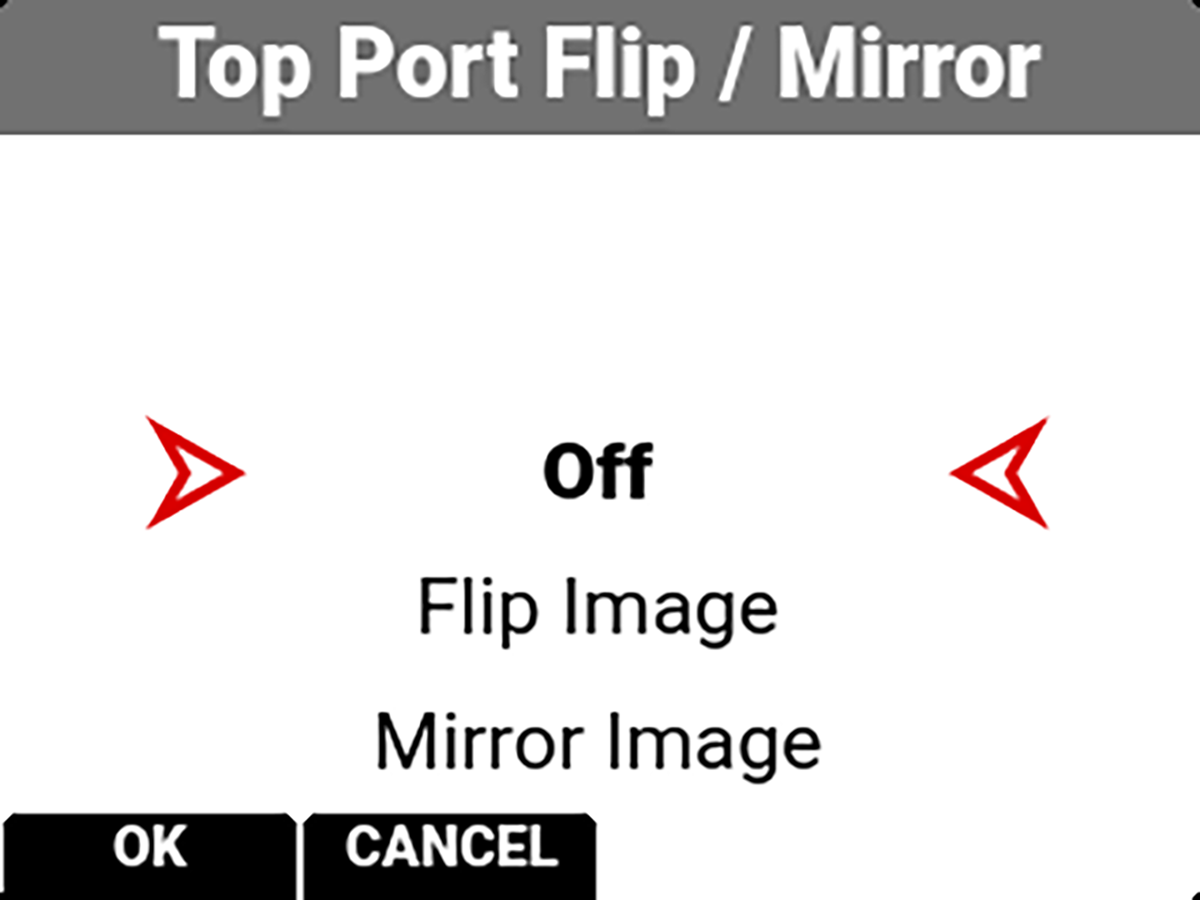
The Flip / Mirror setting you can select include:
-
Off
-
Flip Image
-
Mirror Image
-
Flip/Mirror Image